You have reached help for your specific application. For more assistance with Cisco.com, please refer to
the global help.
Help
- Introduction
- Software
Releases
- Cisco IOS Software Release Naming
Convention
- Downloading
Software
- Registration and Login
Requirements
- Navigation in the Download Software
Area
- General Navigation
- Navigation by IOS or NX-OS
software
- Most Popular
Downloads
- Downloading software using the Download
Cart
- Compare and Research
Feature
- View Features
- Set Cisco Notification Alert
- Searching for a Release
Version
- Releases and associated
images
 Icon Icon Icon Icon- Release Documentation
- Software Download
Agreement
- Software Download using Download
Manager
- Direct Software Downloads without using
the download manager
-
Read and Write Reviews
-
Personalization Features
- Personalized Navigation
- Download History
- IOS Product Lifecycle Dates &
Milestones
-
Software Release Lifecycles
-
Providing
Feedback
FAQ
-
Registration and Service Contract
- Why do I have to register for certain
software?
- How do I add a service contract to my
profile?
- I am already registered as a Guest user
and logged in. Why am I still unable to download software?
- Why can't I download the VPN client after
creating an account?
-
Using the Software Download Area
- How do I search for software in the
Downloads area?
- How do I navigate using the Product
Selector?
- Can I download multiple files at a
time?
- What do the Add to Cart and Download
buttons do?
- How do I get software notification
alerts?
- What is 'software on chassis'?
- How can I navigate within the downloads
area without using the browsers Back or Forward buttons?
-
Cisco Small Business products
- How do I find firmware for Cisco Small
Business products?
-
Free Software
- What do the icons next to the images
mean?
- Is VPN Client software free?
-
Browser Support
What browsers are supported and what
browser settings are needed?
- What operating systems and browsers does
the Download Manager work with?
- Is the Akamai NetSession client required for software
downloads?
-
Troubleshooting in the Software Download
Area
- Download Manager is not working with my
proxy server. What should I do?
- I lost my internet connection. How do I
re-start the downloads in the Download Manager?
- My session seems to have expired. What
should I do?
- When searching for a product, in the
third column, I'm unable to click on the product to go to the download page. Also, the
'Download' button from the cart is unresponsive. I've tried several browsers. What should I
do?
- On my IE 8 browser, clicking 'Download'
next to the image name does not initiate the download. Also, clicking 'Download' from the cart
removes the item from the cart without downloading the file. What should I do?
-
IOS Software
Is it possible to view the features of the
IOS?
Introduction
The Download Software area offers software releases for Cisco products. You can
download the latest releases and updates here and also look at security advisories and other
notifications for Cisco products. In most cases, you
will need to be registered with the site and have a valid service contract to download software.
Return to Top
Software Releases
The Download Software area on the Cisco website offers software releases for Cisco
products. The software releases include embedded software and stand-alone software applications.
This graph explains the different sections in a Cisco IOS software release name. It is important to
note that non Cisco IOS software releases do not use the same naming convention.
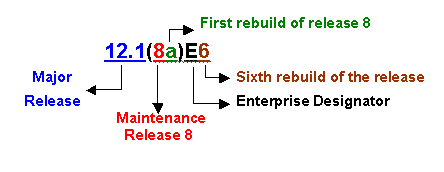
For more information on Cisco IOS software releases click here. Learn
more
Return to Top
Downloading Software
Registration and Login requirements
Log in required to
access software with a lock  . Guest
level users can access non restricted software (firmware, drivers, etc.) Obtain a login and create a
user profile at the Cisco.com Registration page if you don't have one. . Guest
level users can access non restricted software (firmware, drivers, etc.) Obtain a login and create a
user profile at the Cisco.com Registration page if you don't have one.
Service Contract must be associated to the user profile to access the software with
 View instructions. View instructions.
Return to Top
Navigation in the Download Software Area
General Navigation
Cisco products are broadly categorized into these Software Product Categories in the
Download Software area: Click on "Browse All" Button to see the product categories
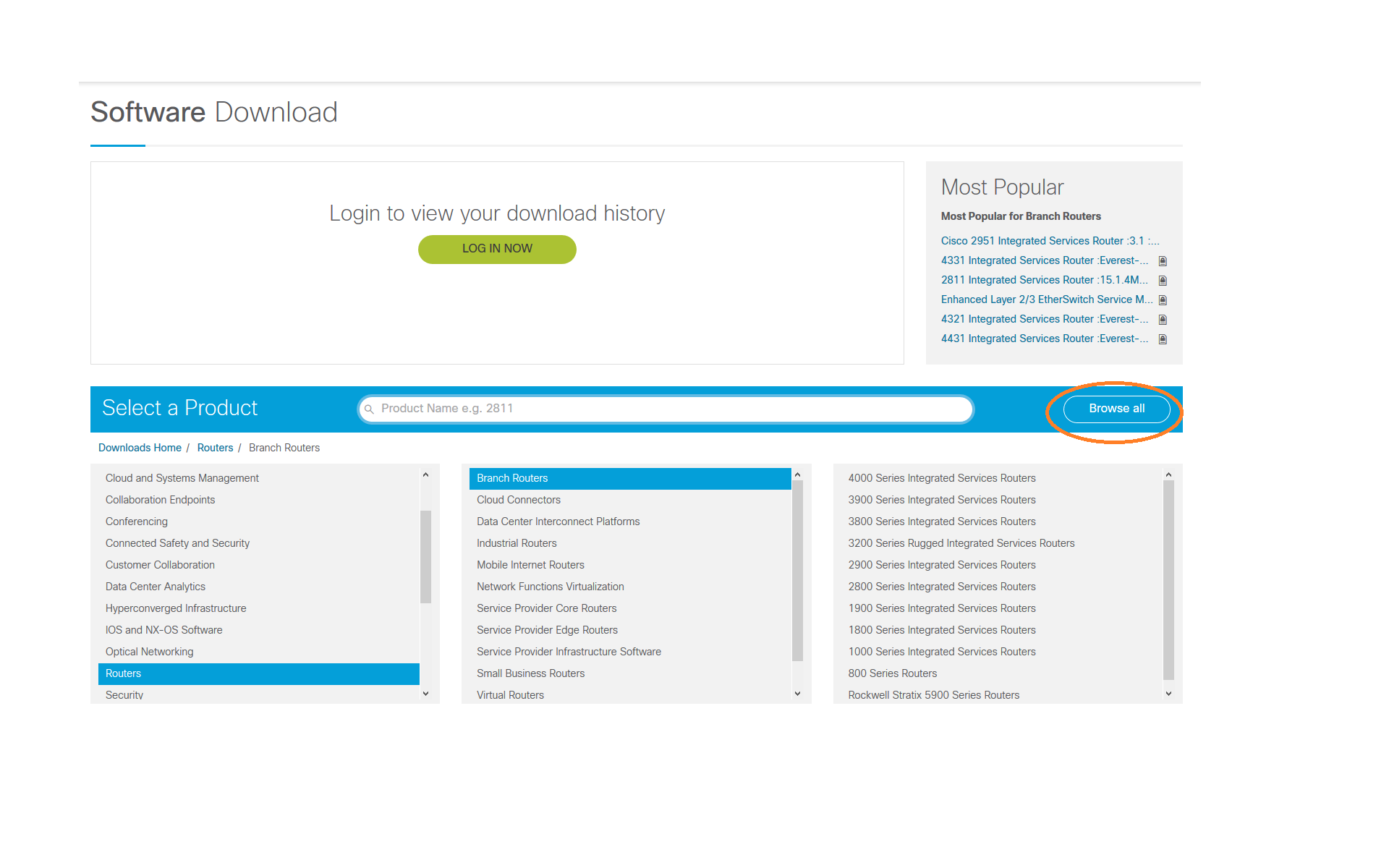
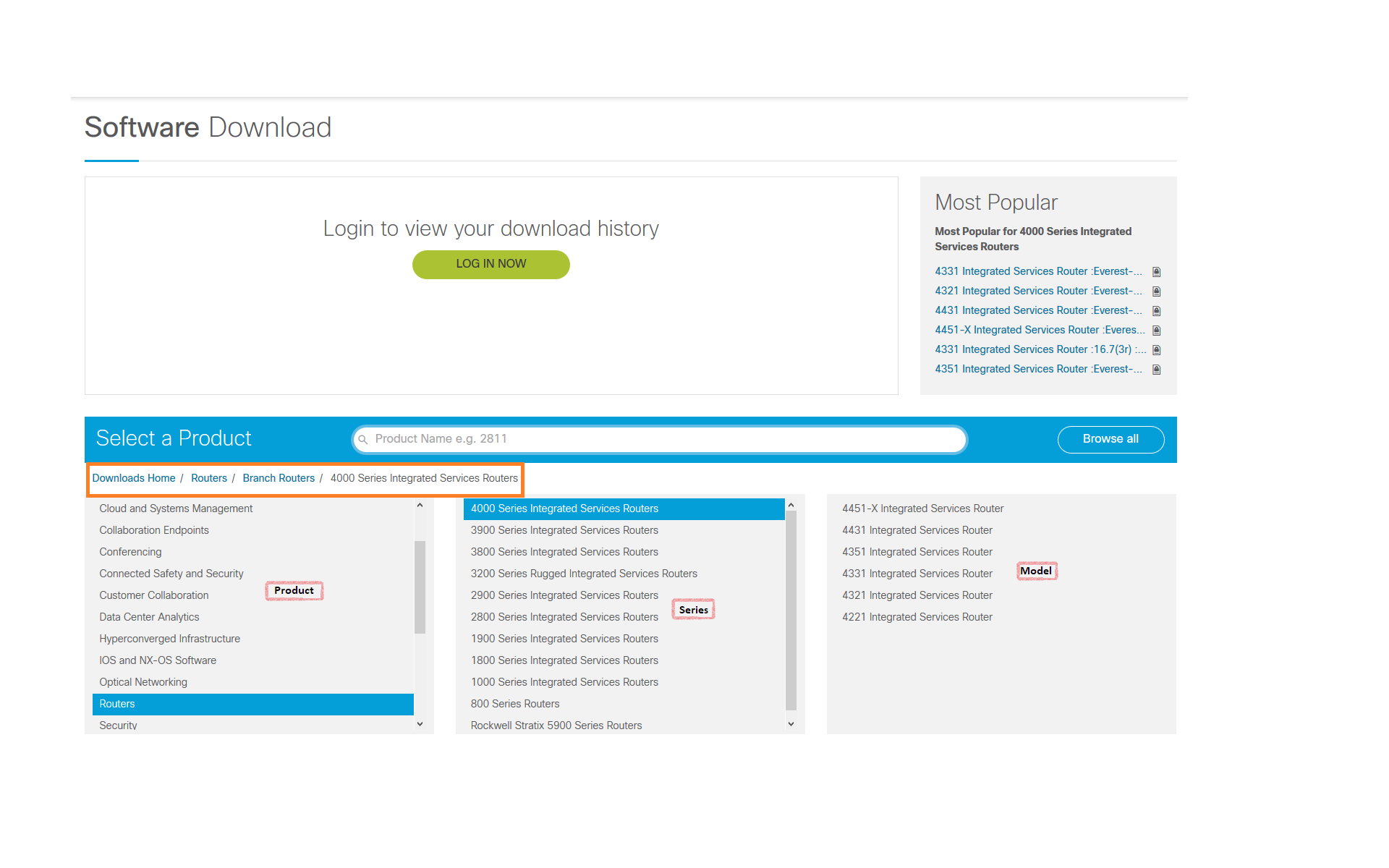
To locate software by product, navigate through the product categories to the desired
item.
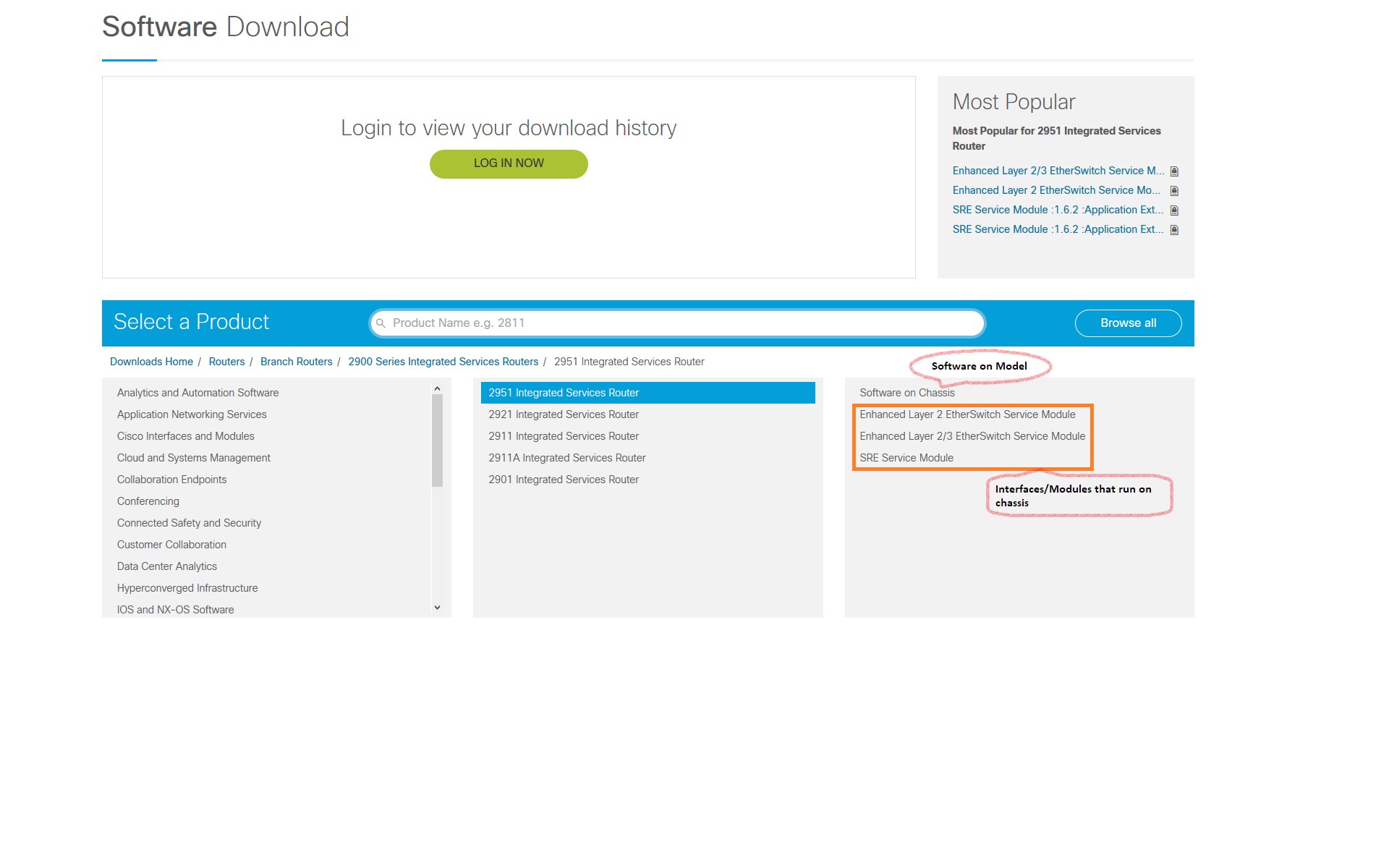
If the selected model is a modular
product that supports different processors or cards, you can select the software that
runs on the chassis or the software that runs on the interface or module.
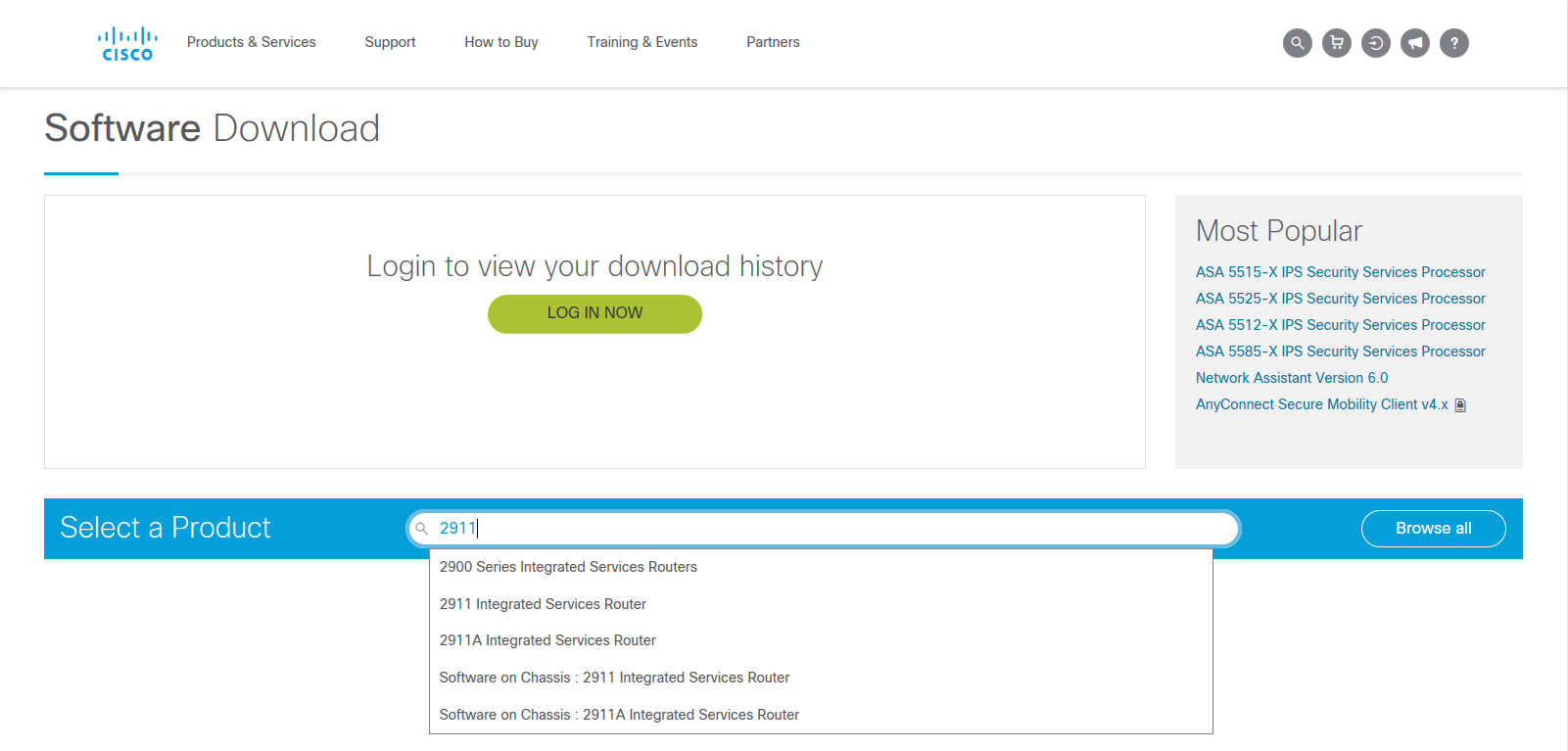
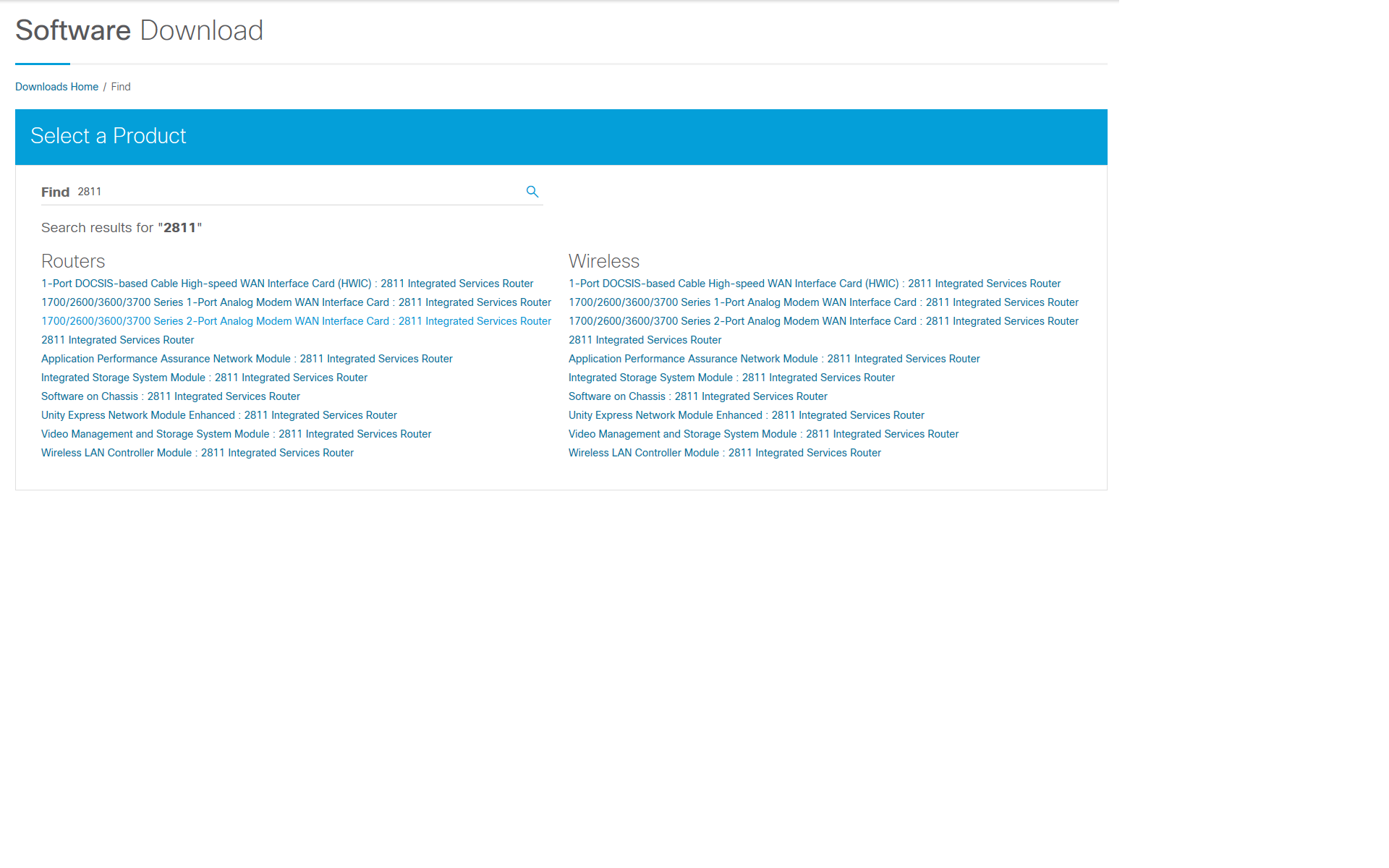
Alternatively, products can be found by searching across all product
categories. You can enter the complete product name or a partial string, such as 2911 for Cisco
2911 Integrated Services Router. Autosuggest feature allows you to select items similar to your
search indicating the number of matches found.
If the selected model has multiple software
types running on it, you can select the desired software type.

Return to Top
Navigation by IOS and NX-OS Software
Select 'IOS and NX-OS Software' as per the example below.
Next, select 'IOS' as per the example below. 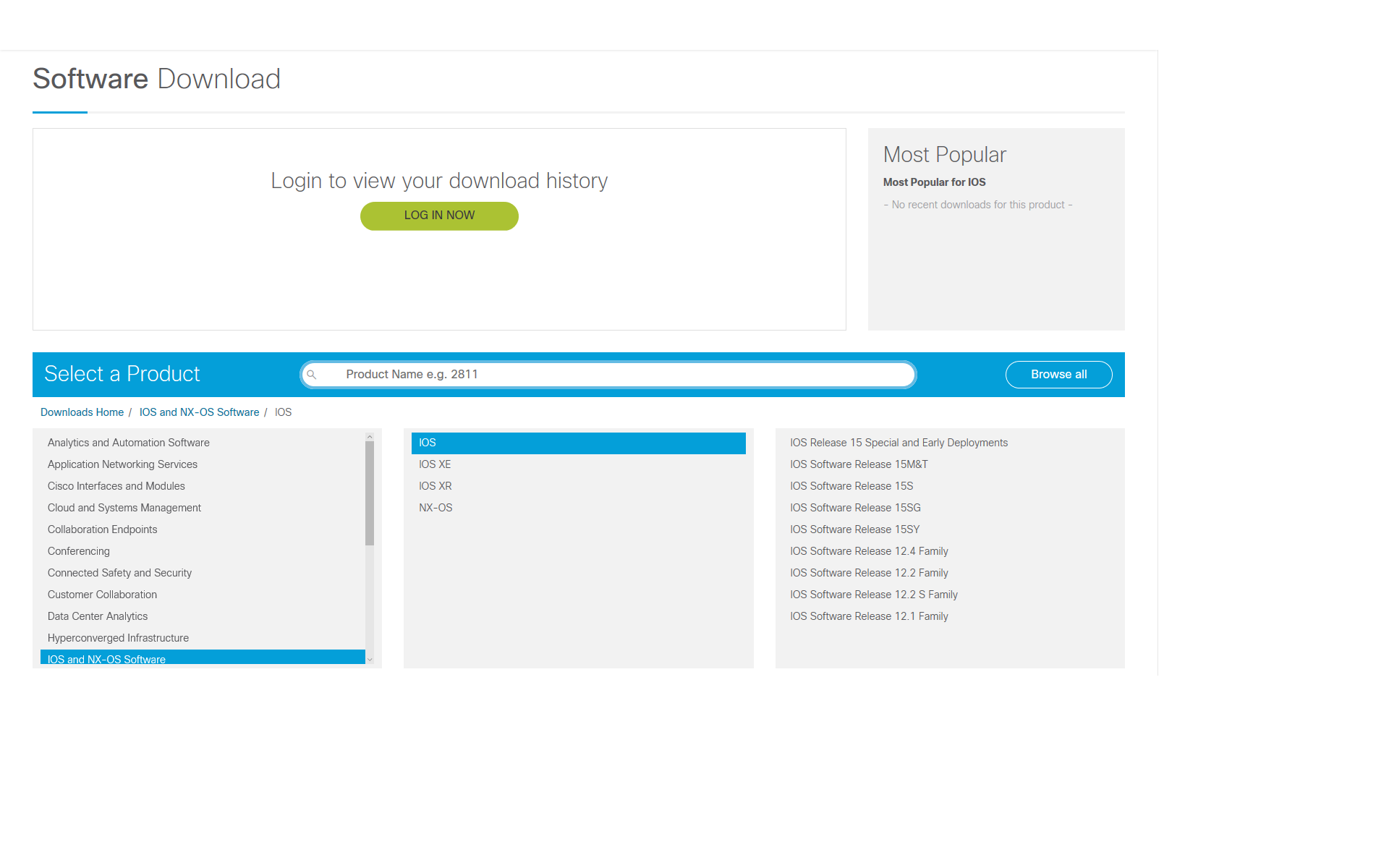
Next, select 'IOS Software Release 12.4 Family' as per the example below. 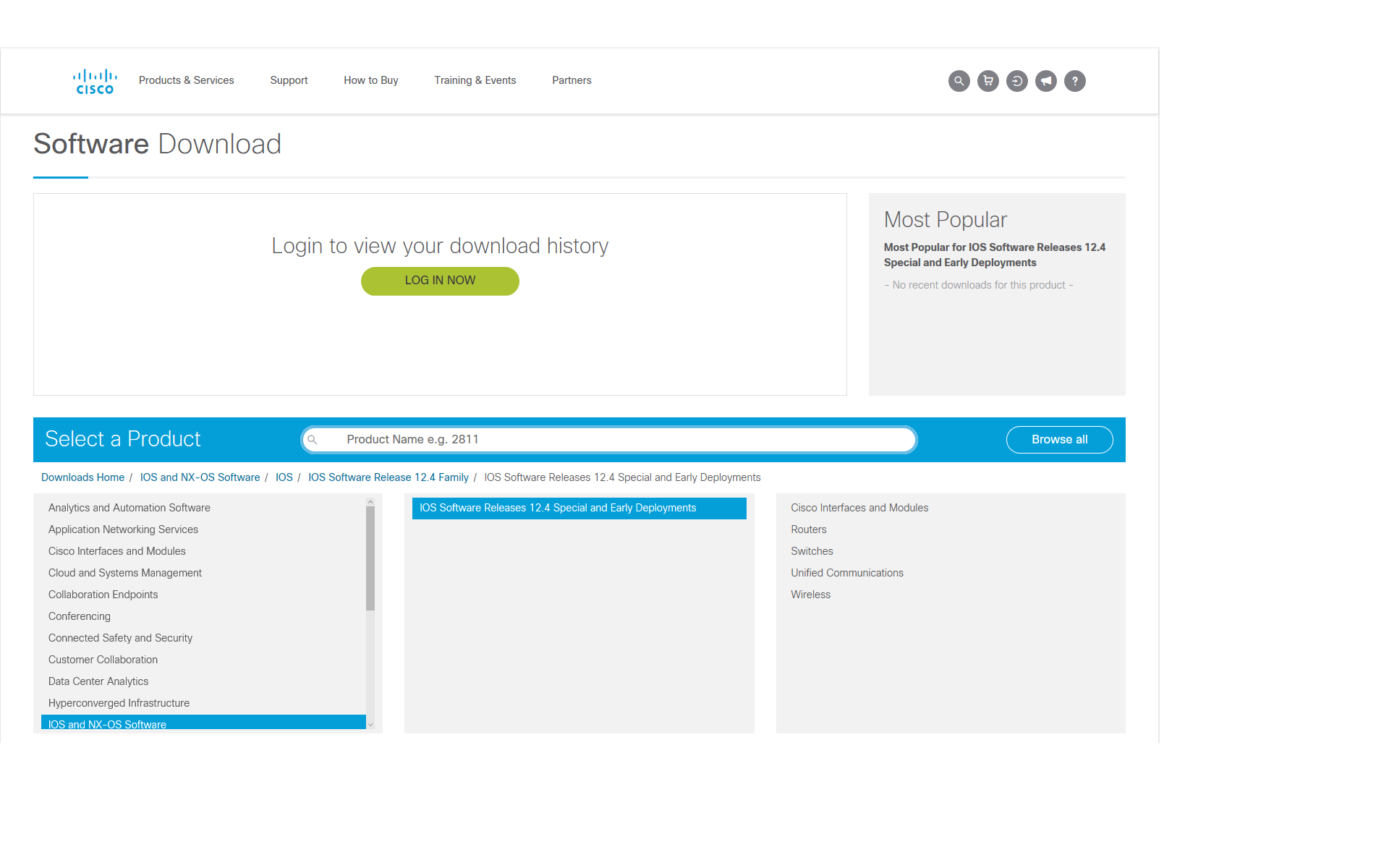
Return to Top
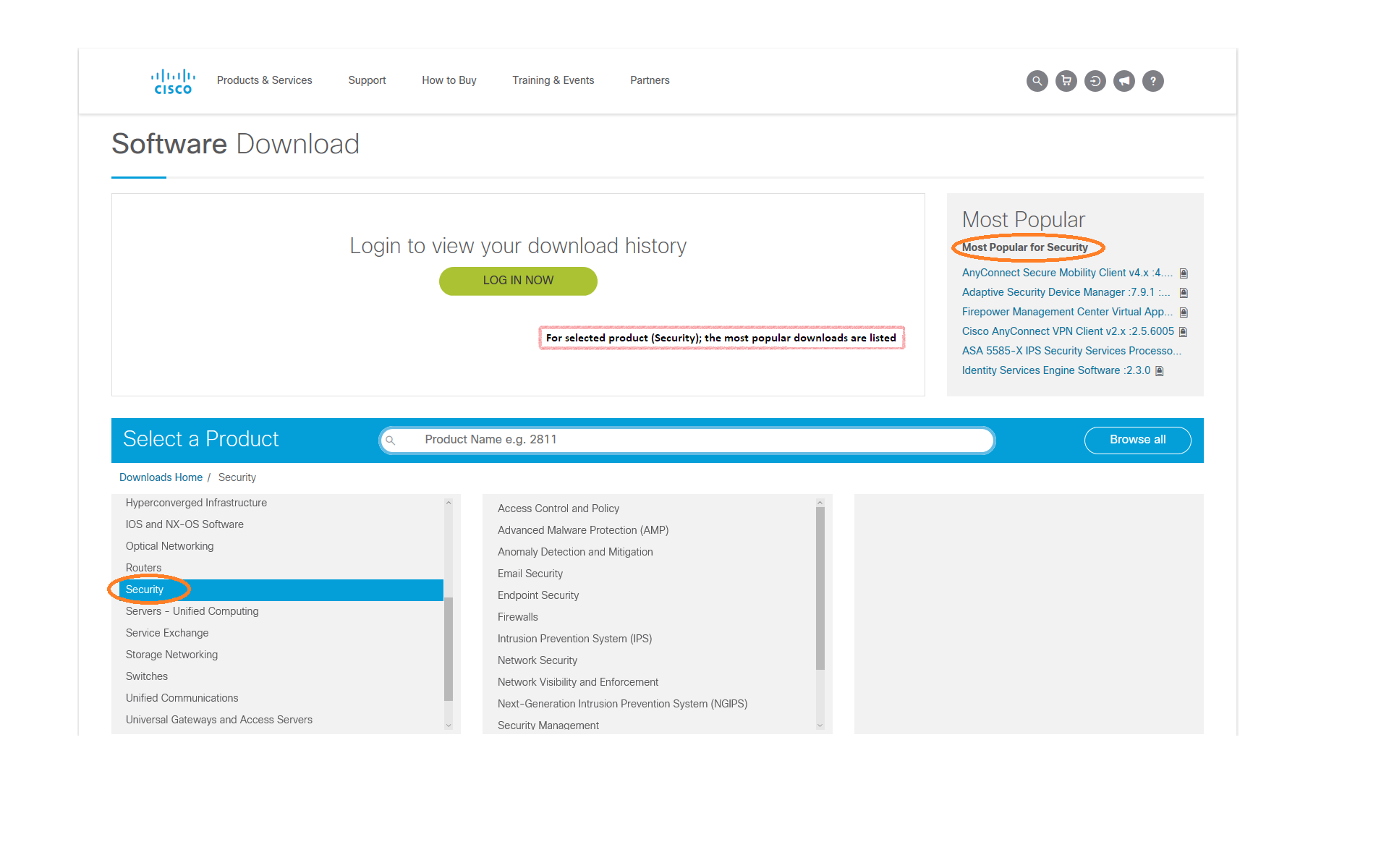
Most Popular Downloads
You can check the popular downloaded products based on the Cisco product lines you are
interested in.
Return to Top
Downloading Software using the Download Cart
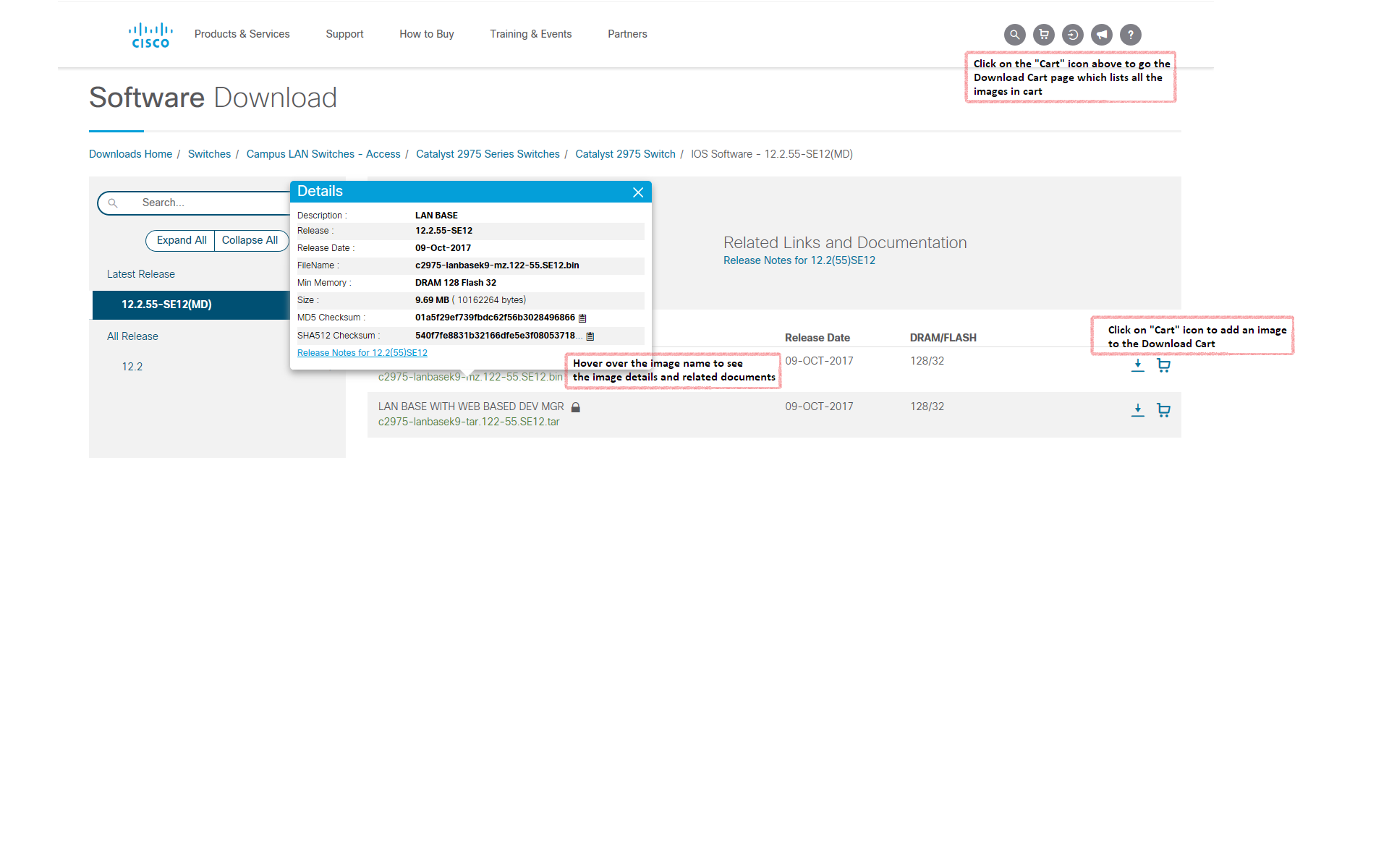
Once you have selected the software image/file that you need to download, you can
either click on the 'Add to Cart' button or the 'Download' button. 'Add to Cart' will add the
selected software to the download cart and allow you to remain on the software listing page to select
more software files. You can add up to 25 software files to the Download Cart. The 'Download' button
would allow you to go directly initiate the download on the software listing page.
You can click on the 'Download Cart' link on the top right of the screen from any page
in the download navigation to directly access the Download Cart.
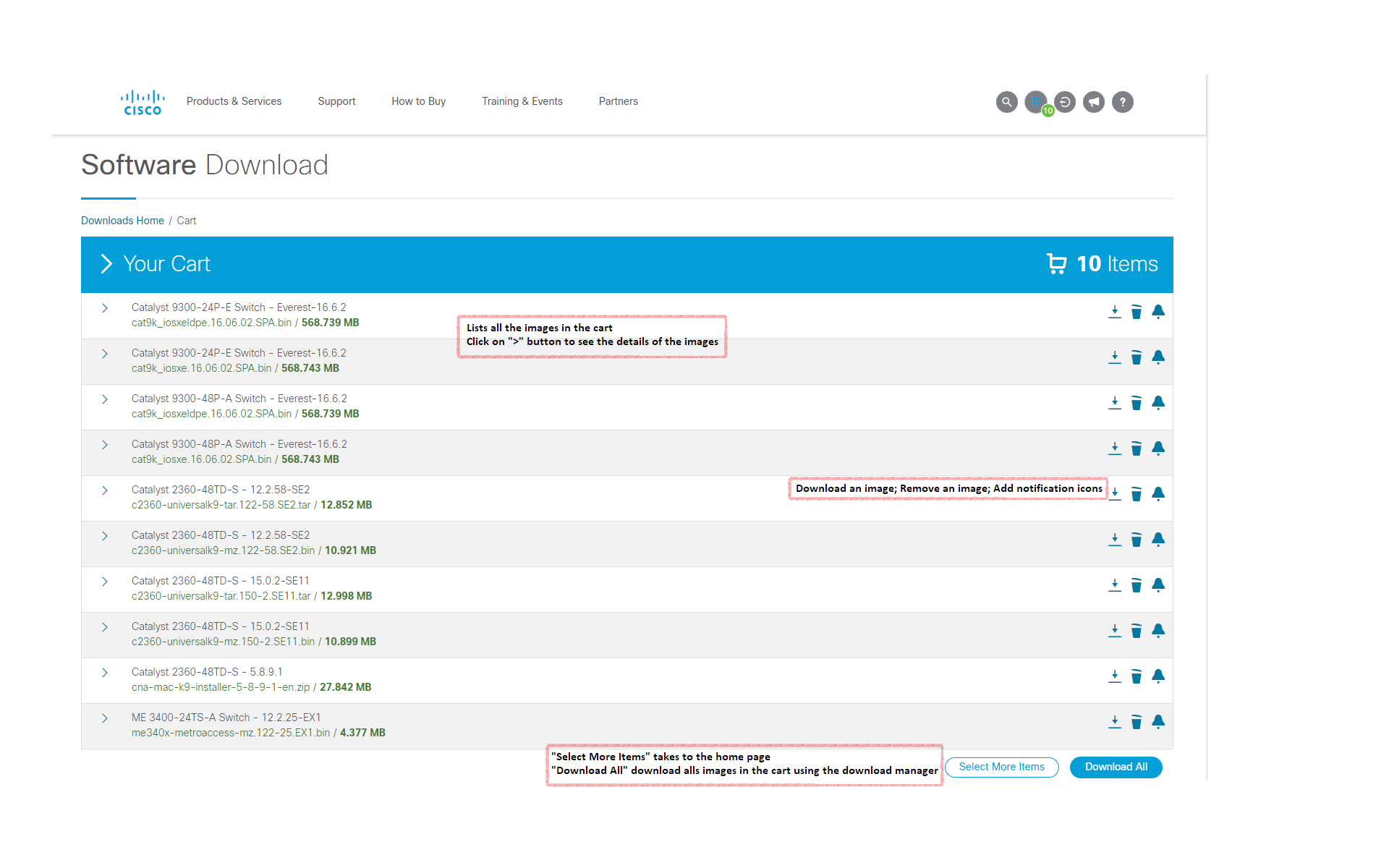
The Download Cart displays all the software that has been added to the cart. It shows
the Product, Release Version, Image Name, Feature Set (if available) and the Release and Image level
documentation.
Return to Top
Compare and Research Feature
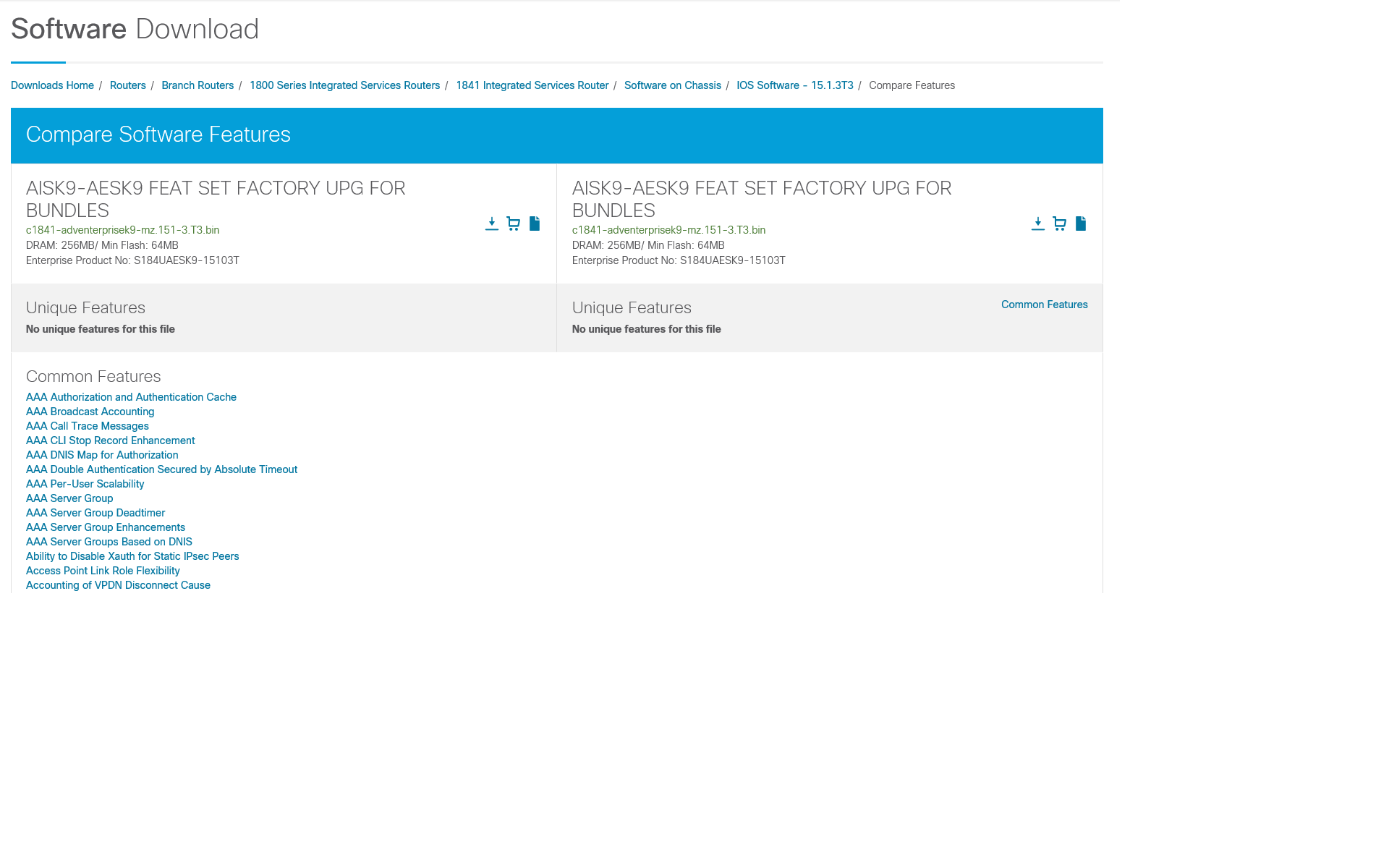
This feature allows you to compare features available for two images within a release and select the
appropriate image that you require. The screenshot below shows the software listing page where you can
select two images to compare by selecting the check box beside it and clicking on the 'View/Compare
Features' button. The page will refresh to show the feature information for the two images

You can view the details of each feature by clicking on the link to
the feature. This will pop up a speech bubble which contains information on each feature.
Return to Top
View Features
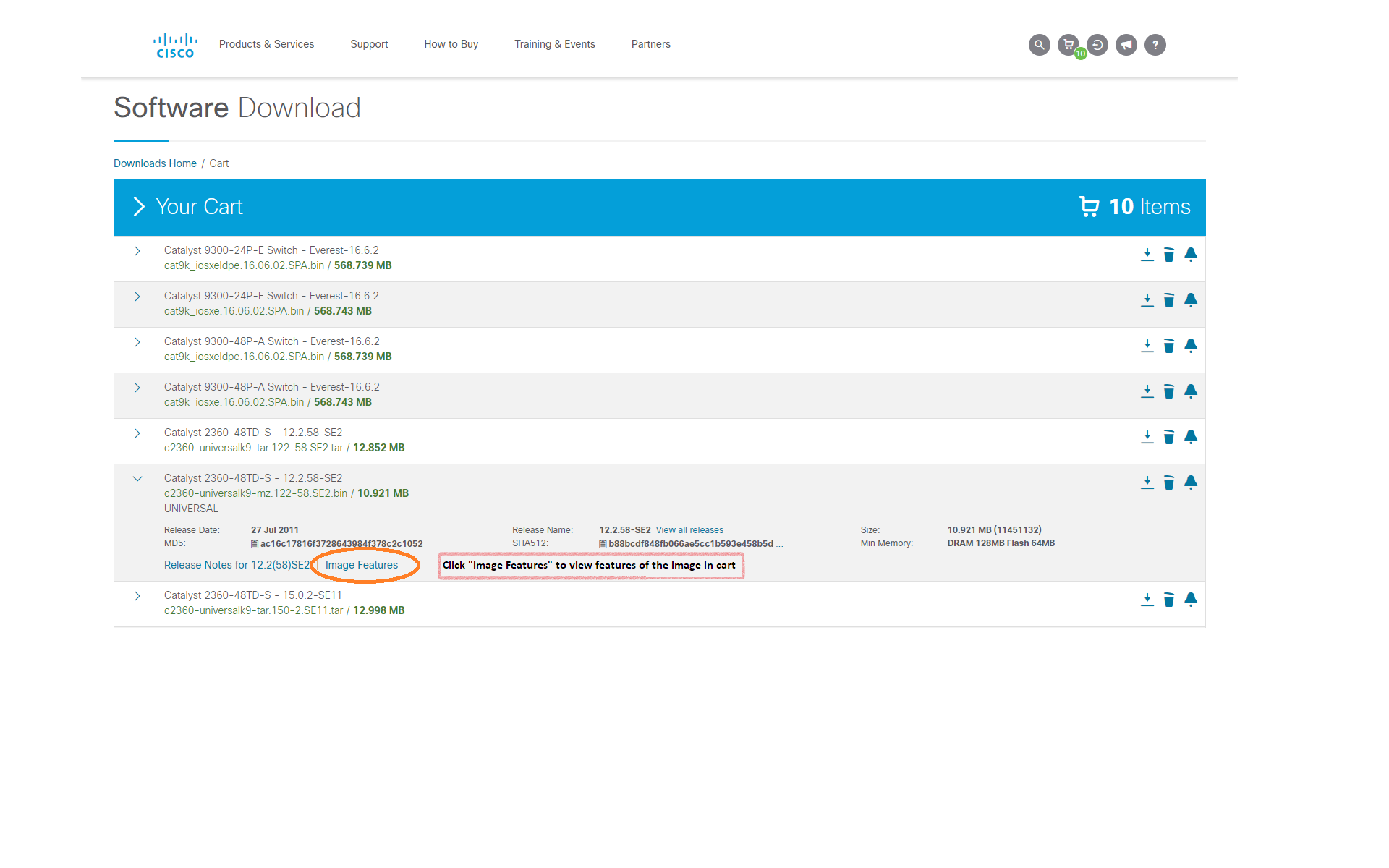
This feature allows you to view all the features that are supported by an image. There are two ways to
access this feature: Select an image and click on the check box beside it to view all its features, or
select an image in the Download Cart and click on the 'Image Features' to view features of the image.
Return to Top
Set Cisco Notification Alert
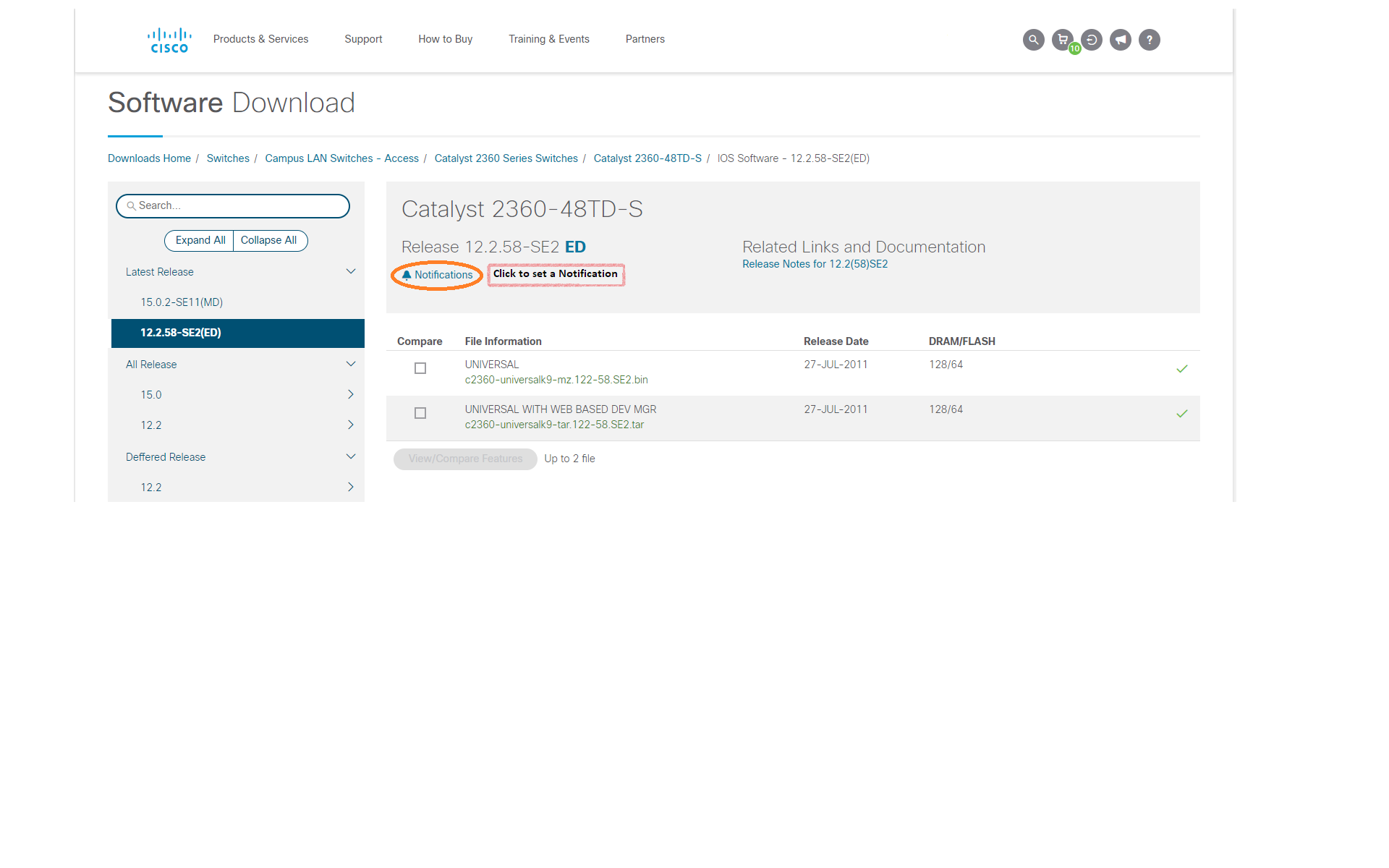
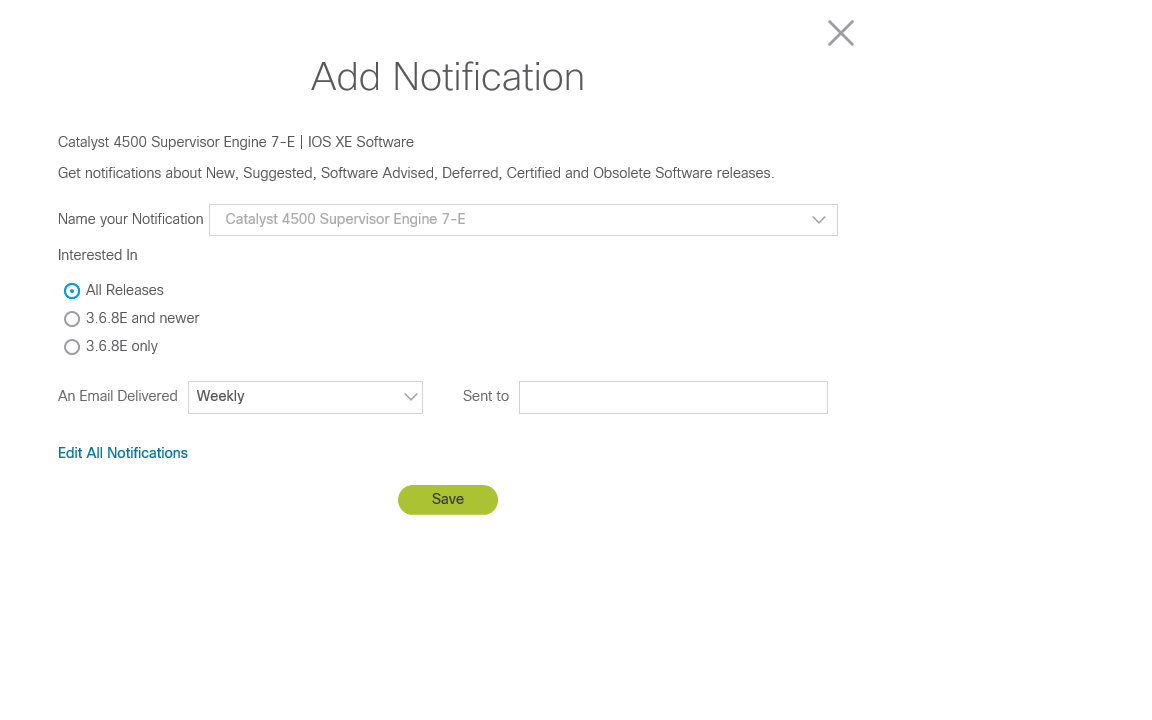
You can set a notification for a software release via the Add Notification link  Add Notification on the software listing page. You can
choose to be notified about software updates to all releases, a specific release and newer or a specific
release Add Notification on the software listing page. You can
choose to be notified about software updates to all releases, a specific release and newer or a specific
release
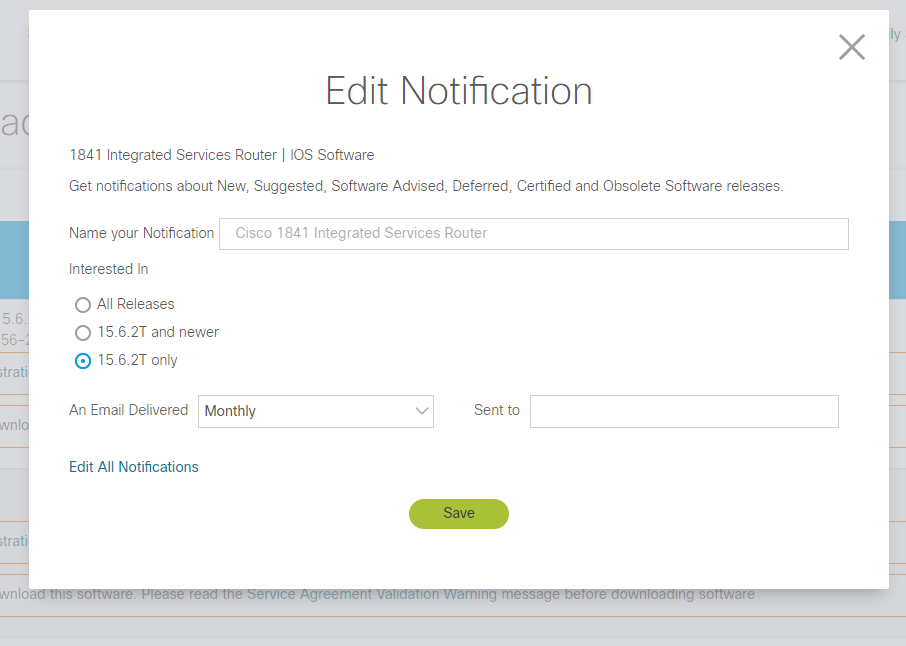
Software updates notifications that were previously created can be edited by clicking on the Edit
Notification link, Edit Notification
If the notifications have been set at a�different level in the Cisco Notification�Service then the
notifications can be edited in the�Cisco
Notification Service application
The Add and Edit Notification features are also available on the cart page.
To view all notifications or to subscribe to other kinds of notifications go to the�Cisco Notification Service
application
Return to Top
Searching for Release Version
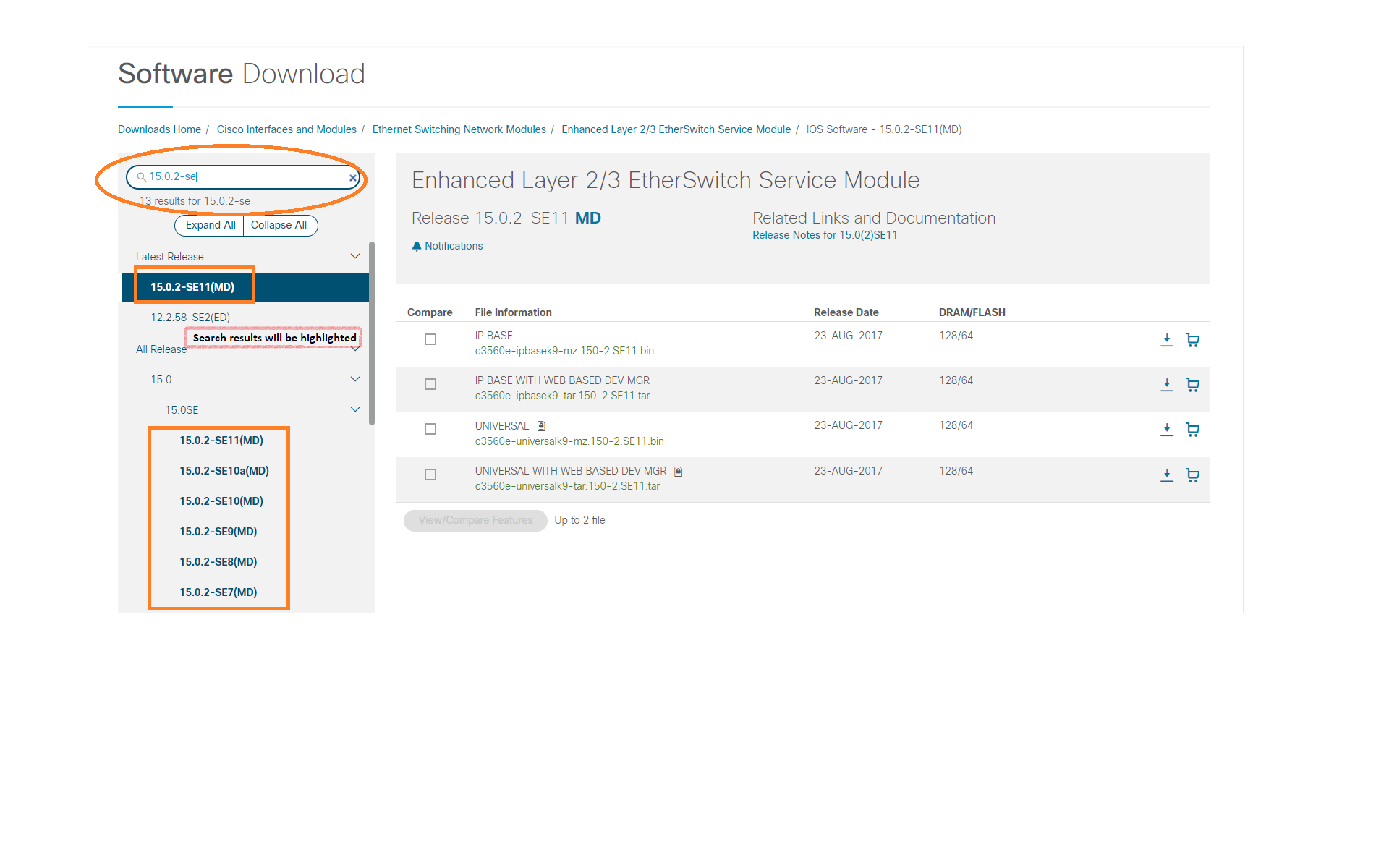
You can search for a specific release within the page using the Search Release
box. You can enter the complete release version or a partial string, such as 12.2.55 for a
12.2.55SE11. A match will result in an open folder where the leaf nodes containing the match are
highlighted. A message will appear under the search box indicating the number of matches
found.
Return to Top
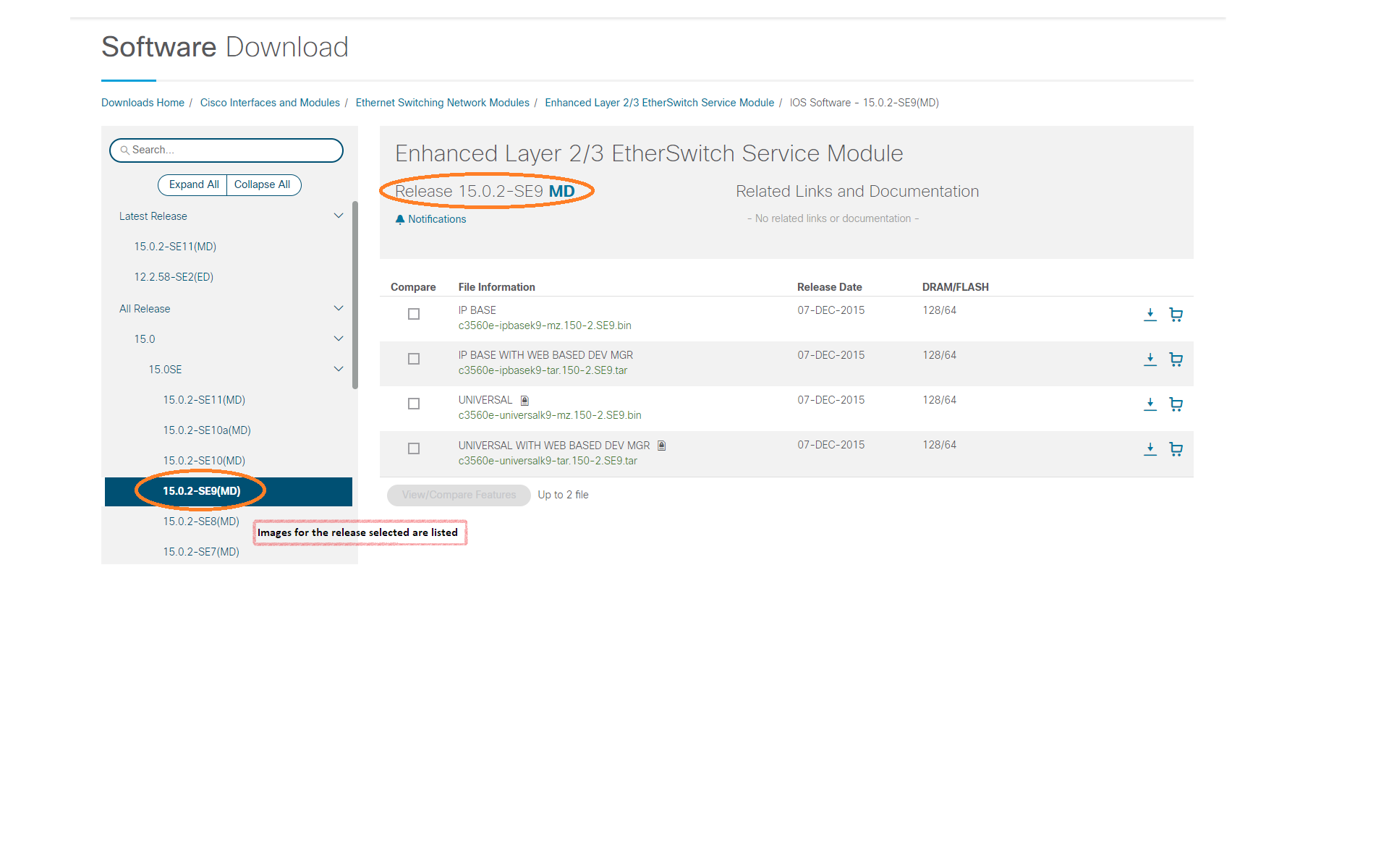
Releases and associated images
Once you have selected the product and the software type (if applicable) in the Download Software area,
you will see a list of releases categorized into 'Latest Releases', 'All Releases' and 'Deferred
Releases' folders. The 'Latest Releases' folder contains the most recent releases as determined by
distinct rules for IOS and other software types. 'Deferred Releases' folder will show only if a product
has deferral advisories for some/all images within a release for a given product and software type. If
you click on a release number, you will see all the images associated with that release name for
different feature sets. You can also sort the image list based on File Name, File Size, Memory and
Release Date. The default sorting on the image list is by the File Name.
Return to Top
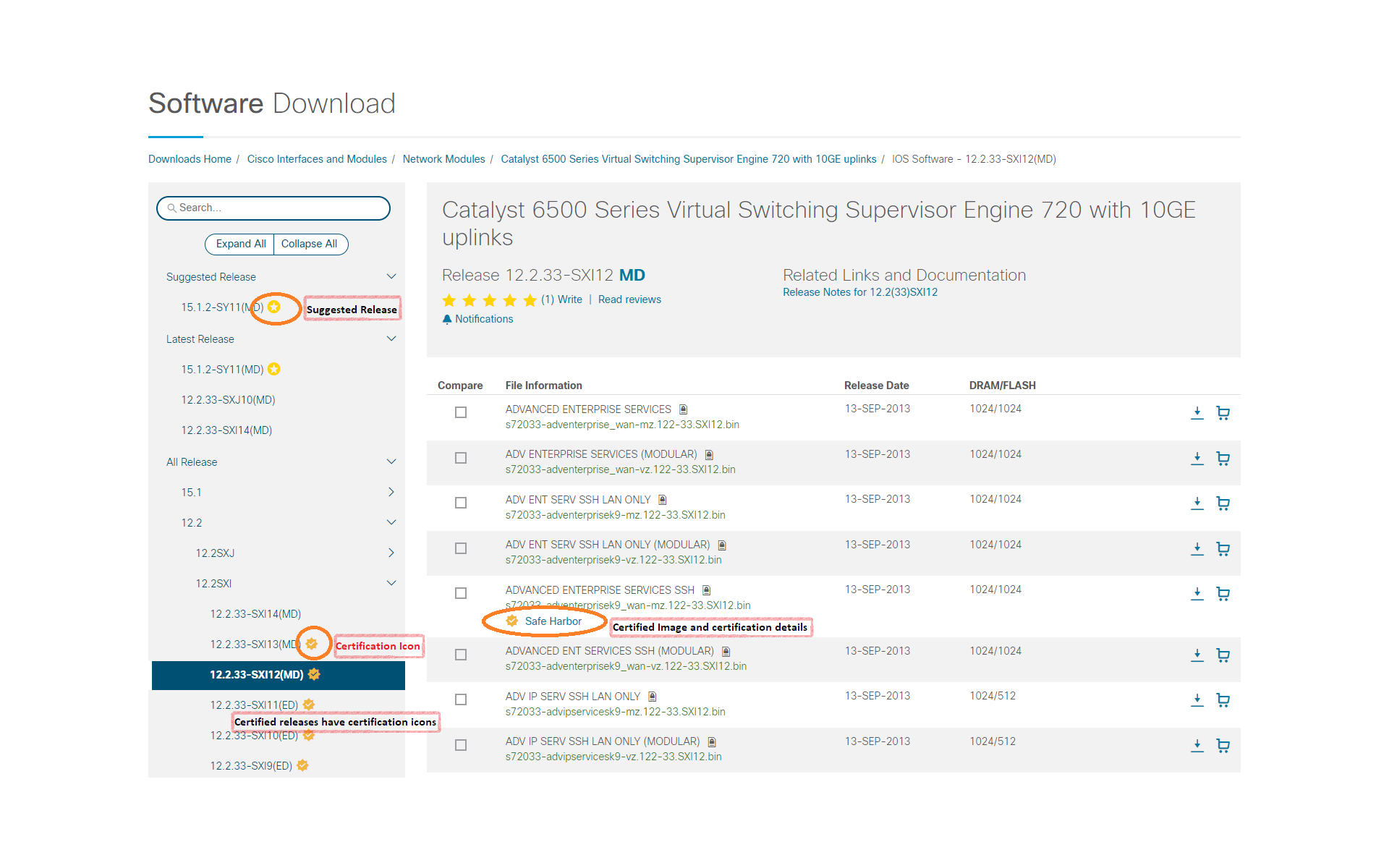
Icon
The icon next to the release number indicates that a software image(s) under that release has
received an elevated status designation from Cisco. The program name(s) for an image is listed
under the image name. The program name can be clicked for specific program details.
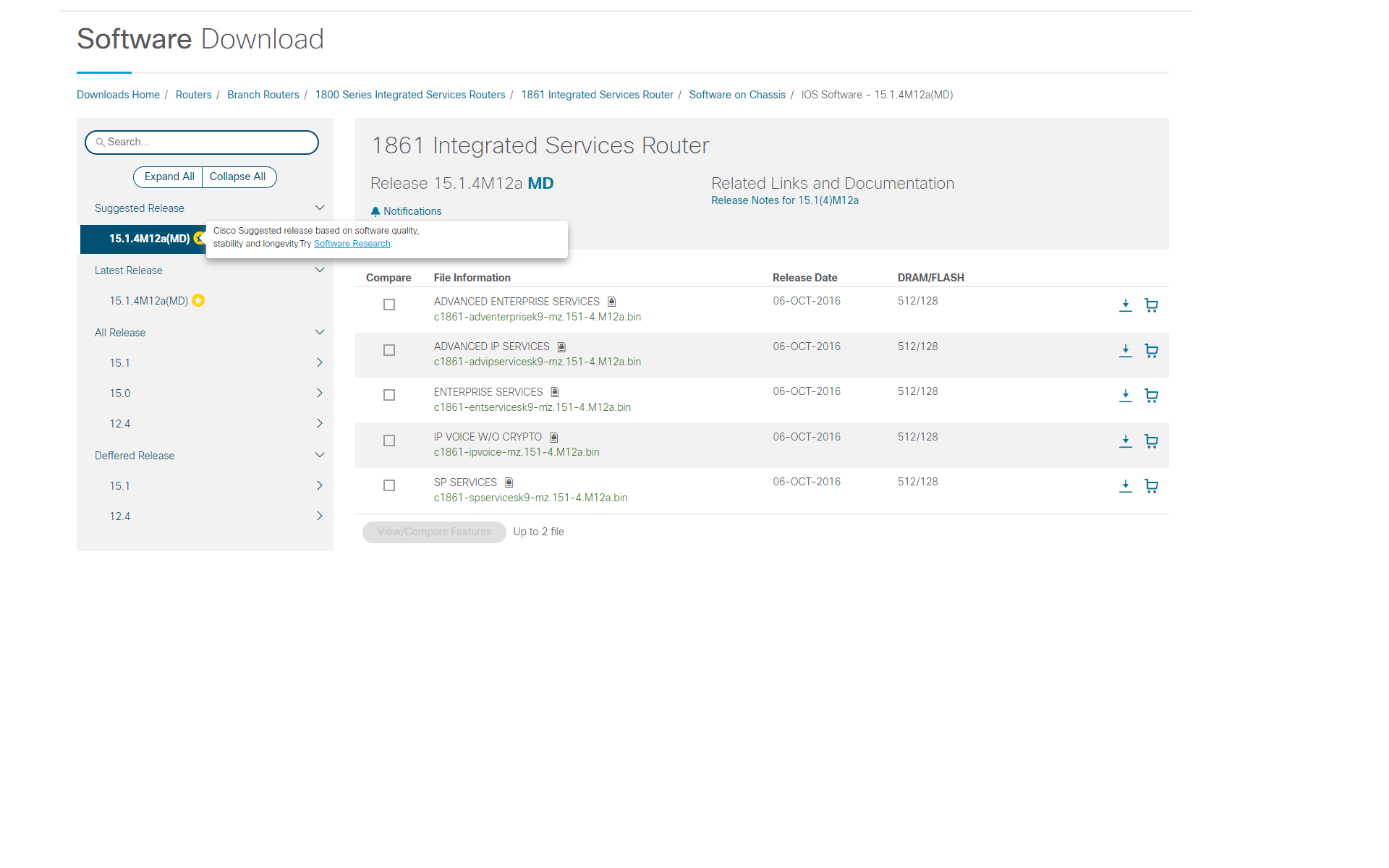
Icon
The icon next to
the release number indicates that the software image(s) under that release are suggested for use by the
Cisco Software Research Tool.
Return to Top
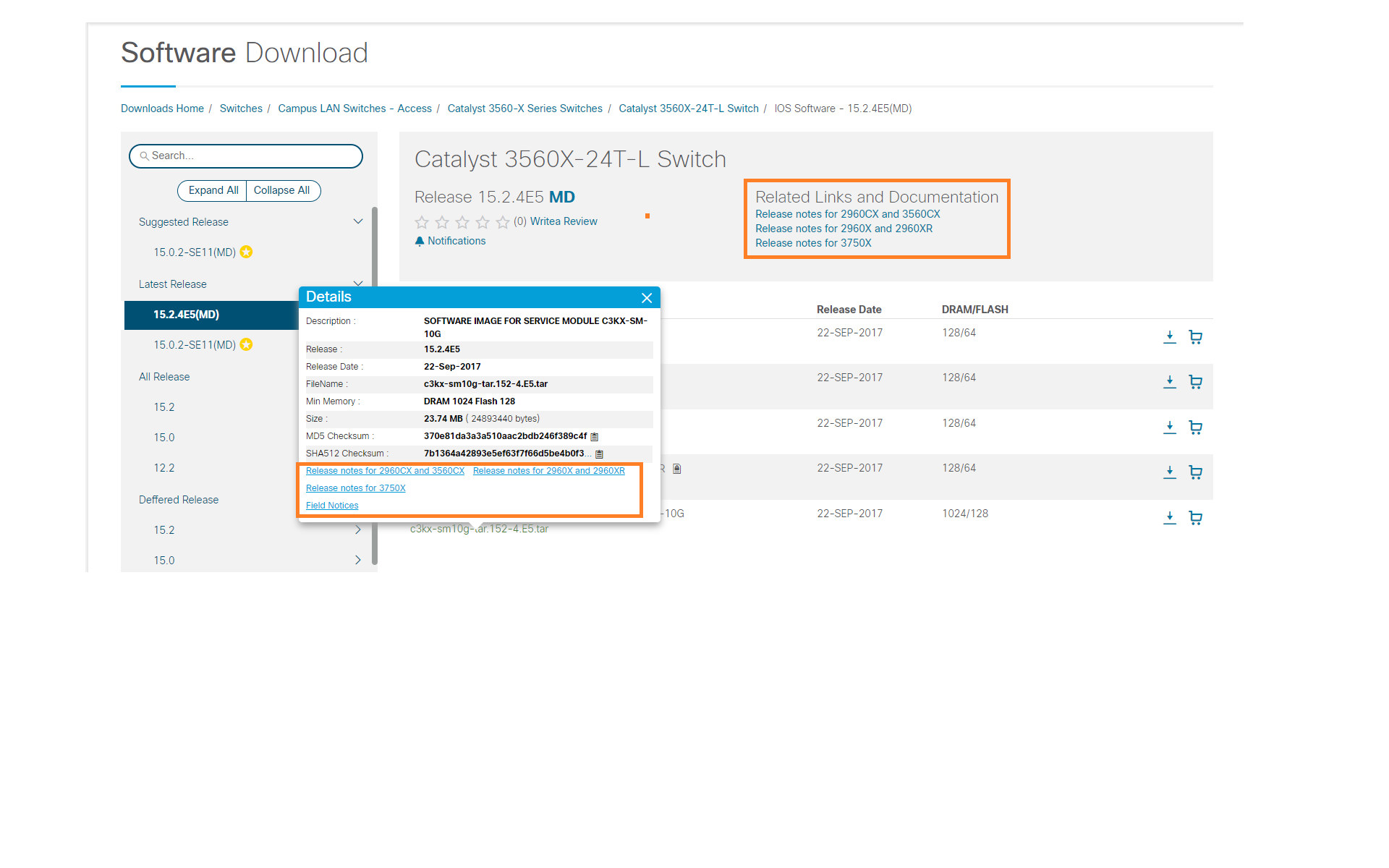
Release Documentation
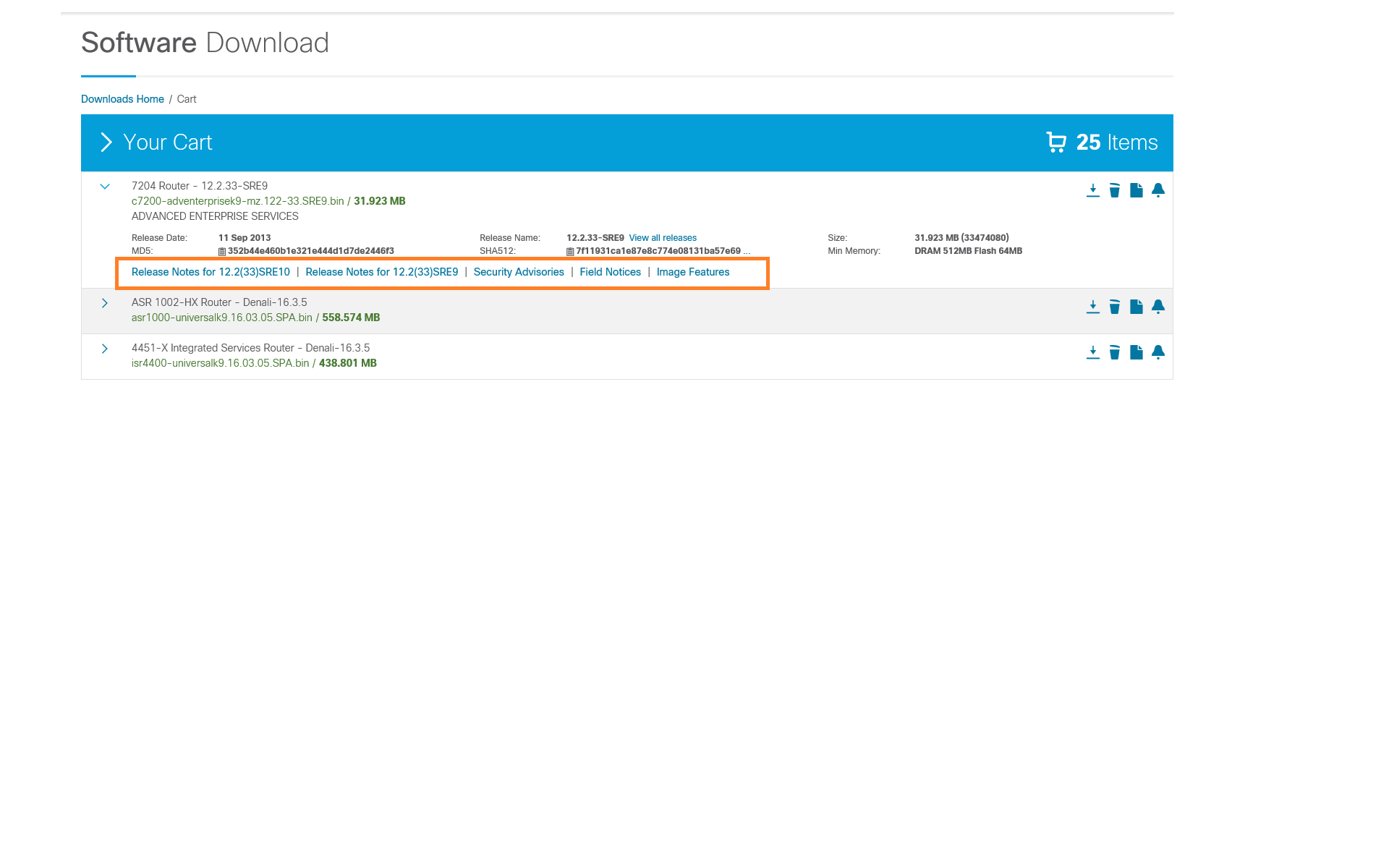
Links to the release notes are posted along with the software images in the
Download Software area. You can easily find the release documentation at the release
level pages and the image details in the Download Cart. These are some examples of release documentation
published in the Download Software area.
Return to Top
Software Download Agreement
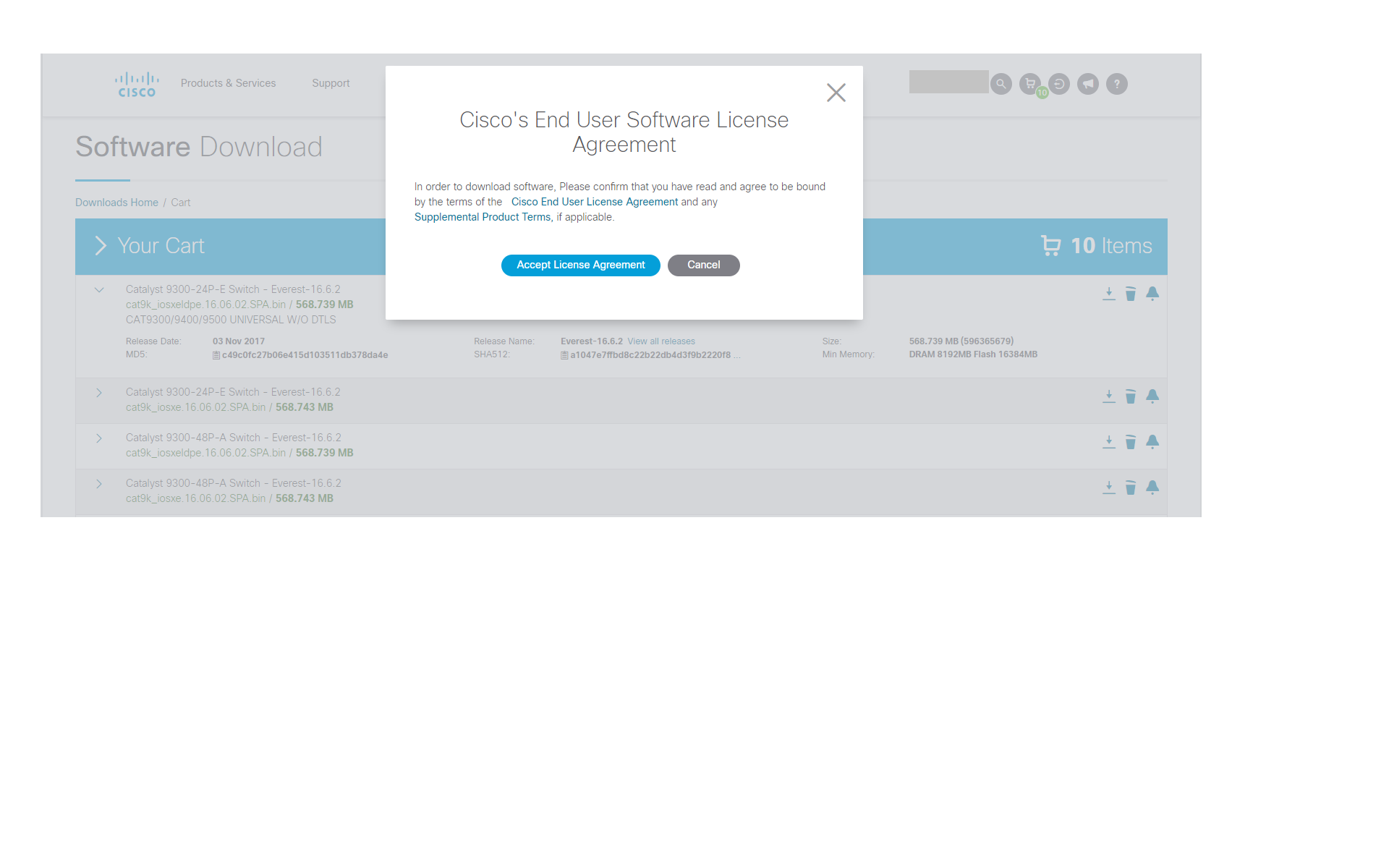
You are required to accept the below Download Agreement before you download any
software on the Cisco website.
Return to Top
Software Download using the Download Manager
The Download Manager is a cloud based software download solution. It requires installation of the
Akamai NetSession Interface client
This download option allows you to monitor, pause/resume or cancel the software downloads. Selecting
the 'Download All' option will prompt for installation of the Akamai NetSession Interface client. Once
the client has been installed successfully, you can provide a destination location once for all images.
Once you provide a destination folder for all your images the downloads will start. You will be able to
view the details of each image being downloaded. Also, the Total Progress bar shows the overall
progress status for all the images being downloaded. Any images that are not downloaded continue to
remain in the Download Cart. Download Manager allows you to monitor, pause/resume or cancel the software
downloads.
Additional information about the Akamai NetSession client interface can be obtained at http://www.akamai.com/client.
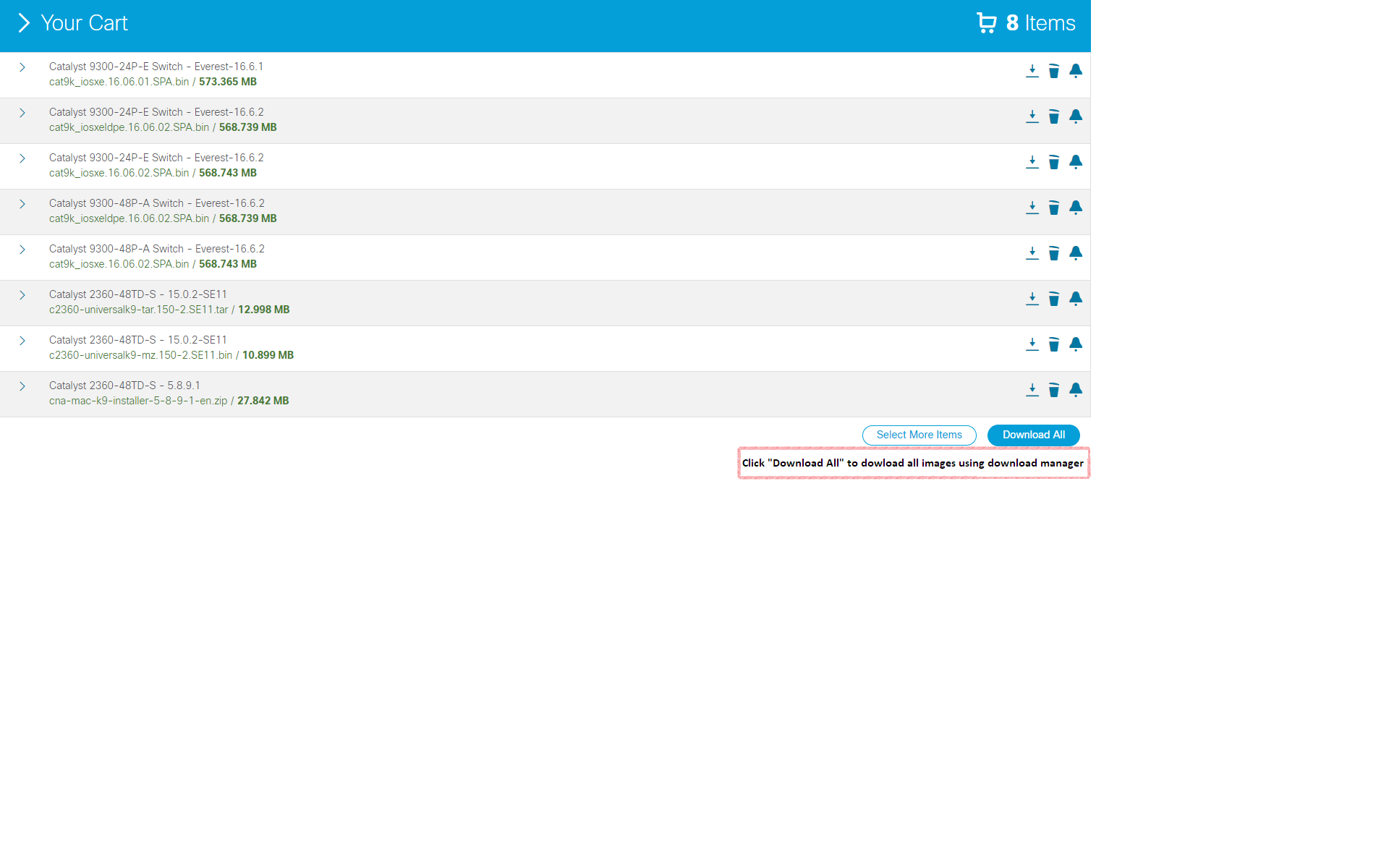
You will be prompted for installation of the client and acceptance of
the License agreement.
Once you provide the destination folder for downloads, the download process will start.
You will be able to view the details of the image being downloaded.
The 'Total Progress' bar shows the overall progress for all the images being downloaded.

Return to Top
Direct Software Downloads without using the Download Manager
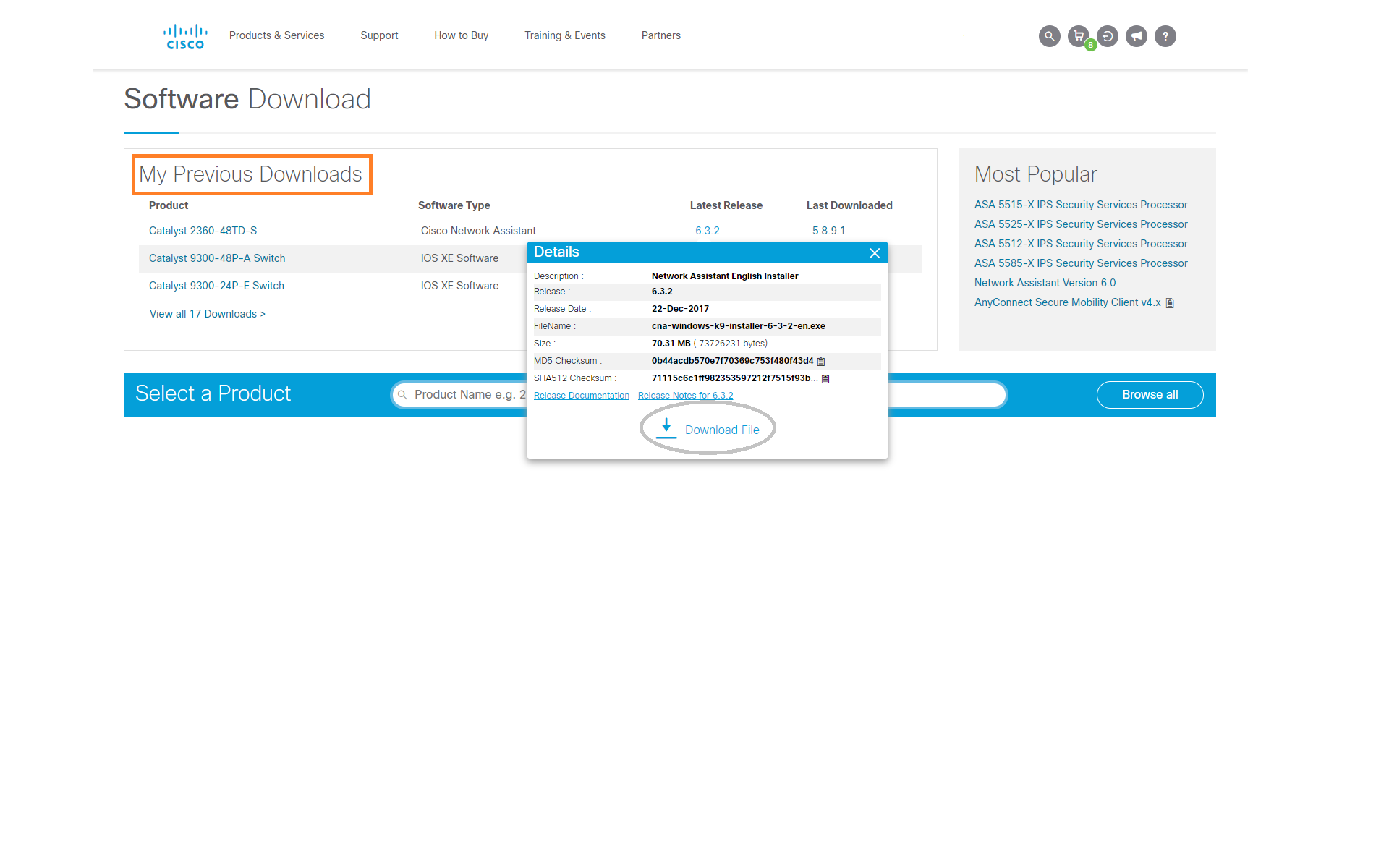
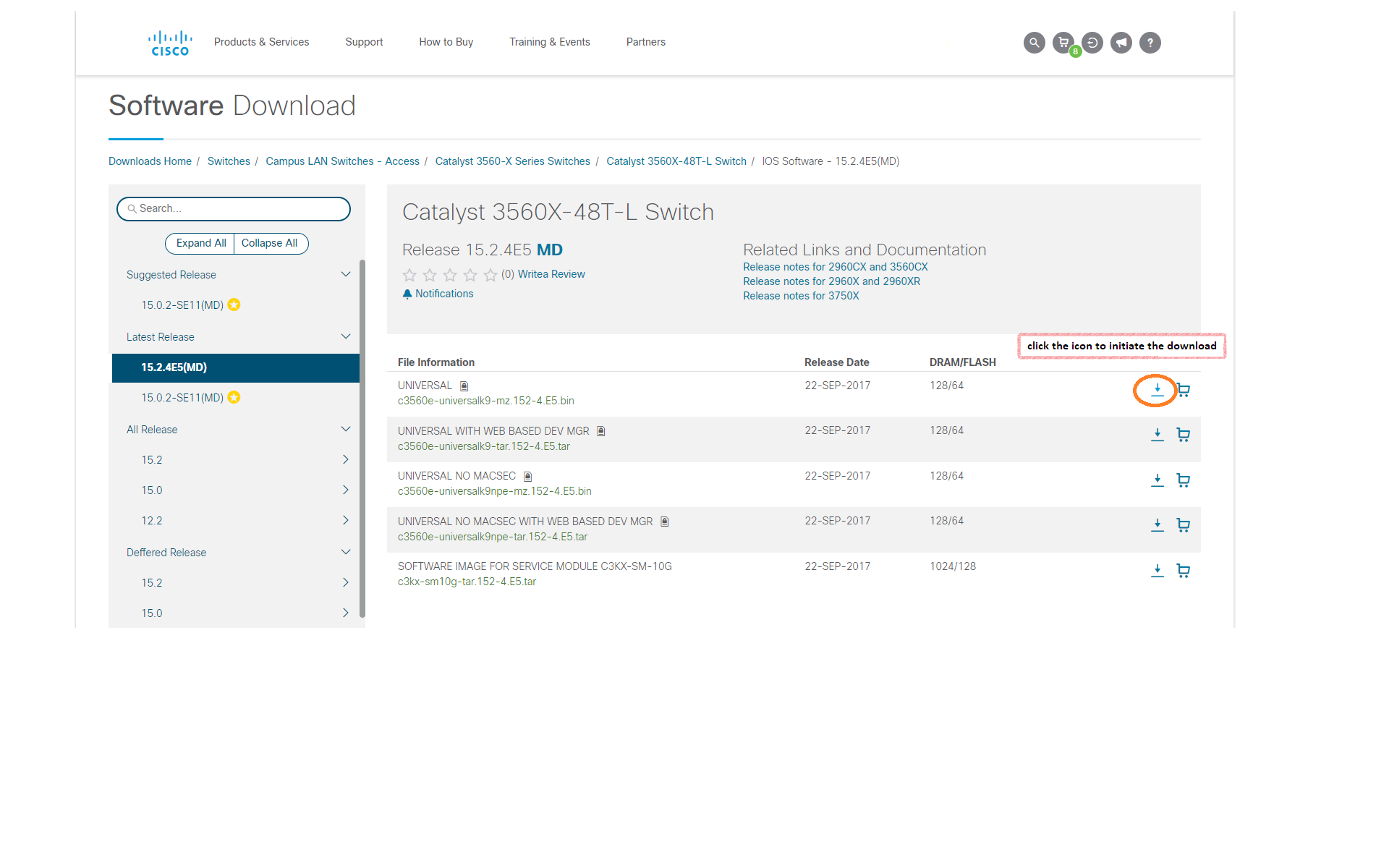
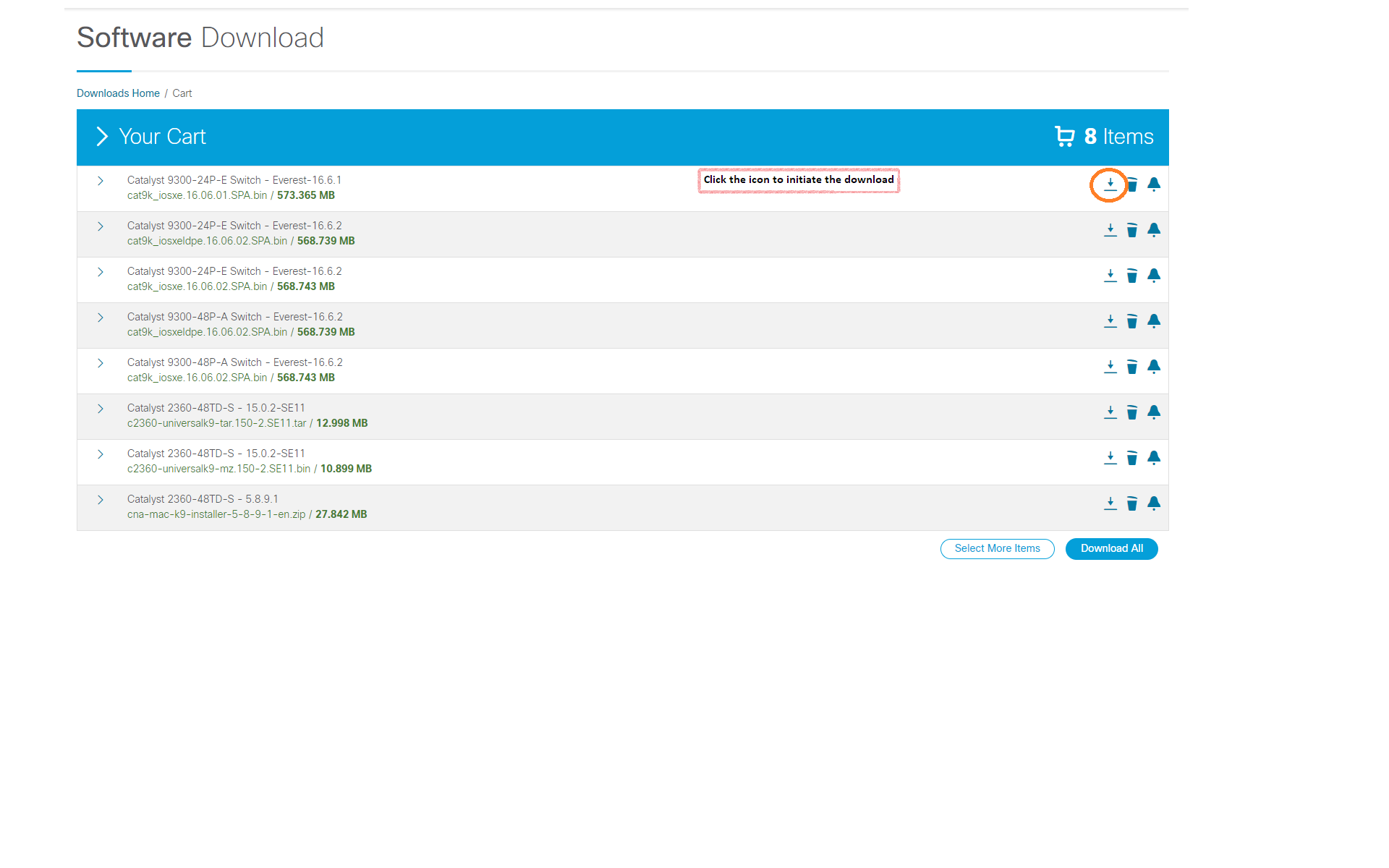
You can download software directly from the My Download History area, the Software listing page and the
Download Cart using the Download button. Download using this button does not require java to be
installed on the computer.
Return to Top
Read and Write Reviews
The Software Reviews feature has been enabled for certain products.
- Customers/Partners/Guest Users can write software reviews.
All Users can Read Reviews, Add Comments on Reviews and see Comments on Reviews made by users and
Cisco representatives.
- Reviews will be presorted by most helpful.
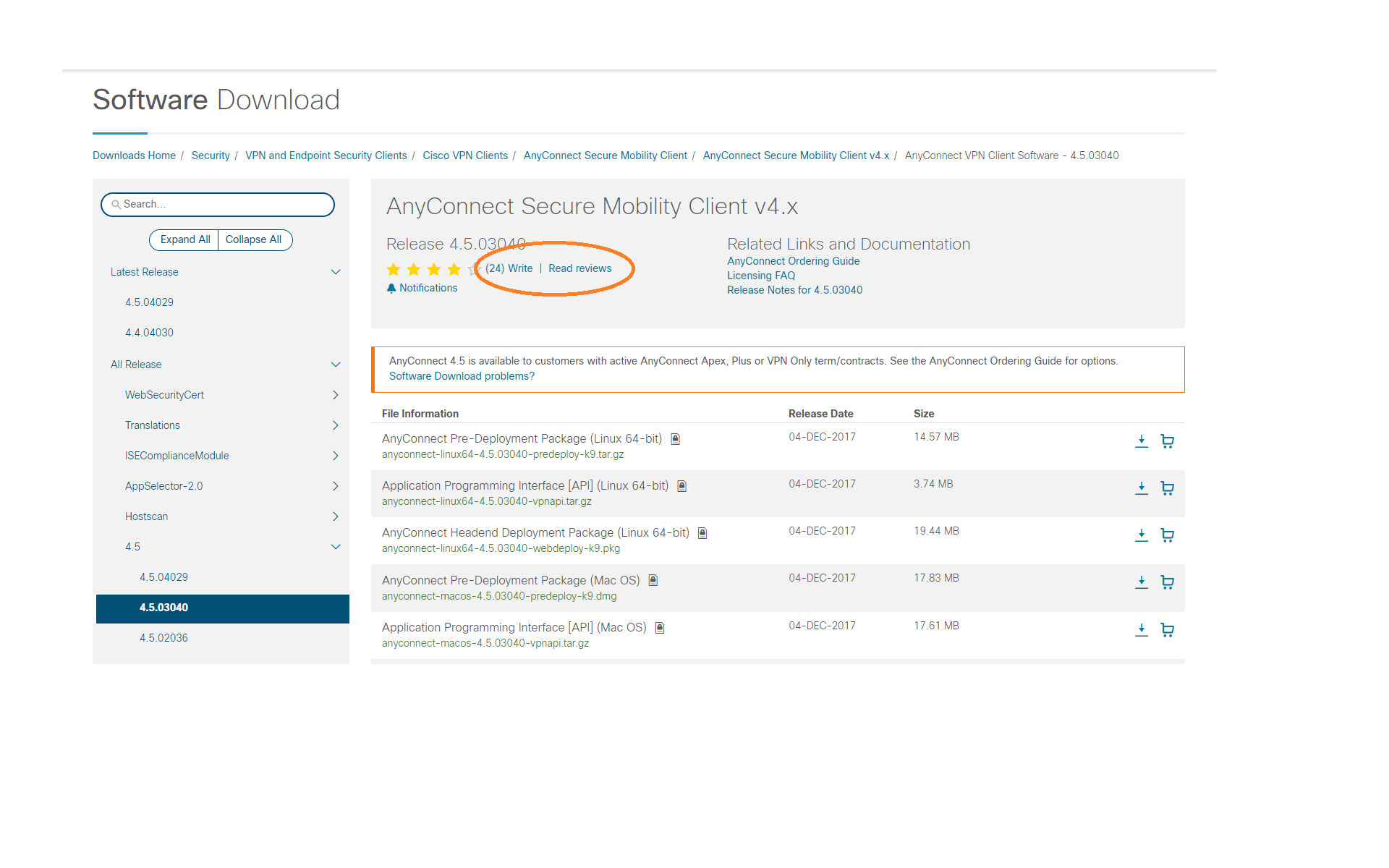
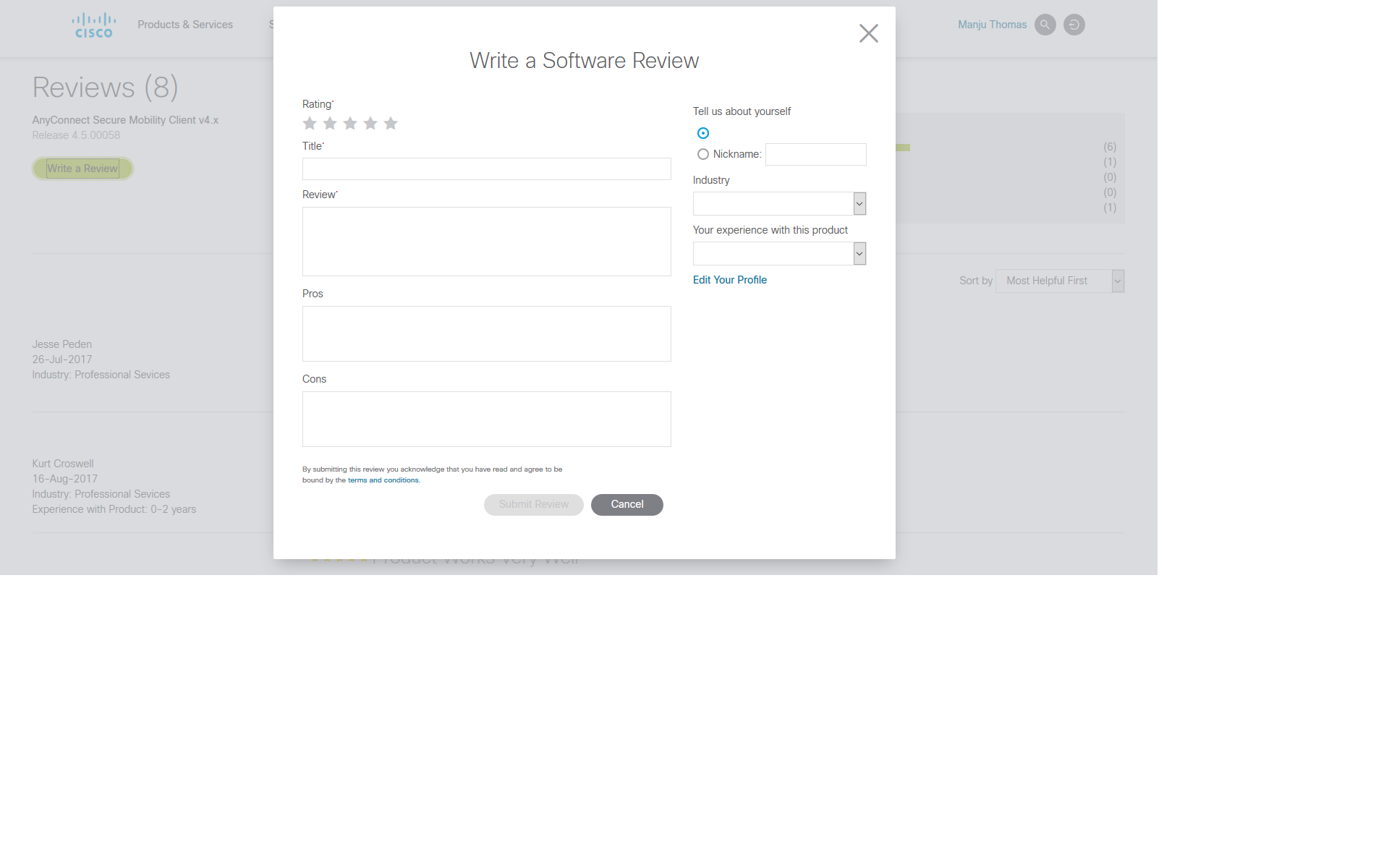
Write Reviews from the Release page:
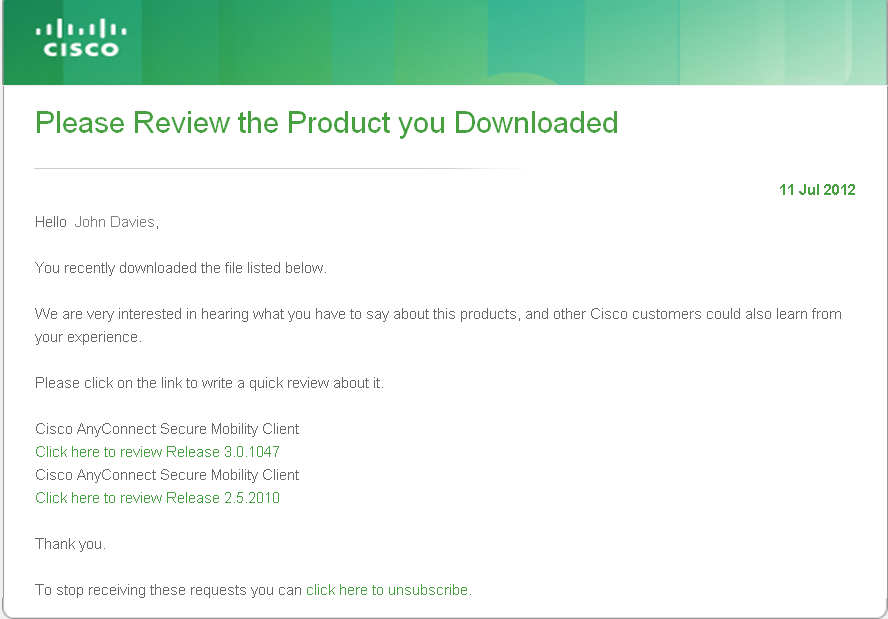
15 days after a download, users will receive an email with an invitation to provide a review of the
software they downloaded:
By clicking on the link in the email notification you received after you downloaded software, you will
be taken to the read reviews page to write a review:
Users can unsubscribe from email notifications of Review requests by clicking on the unsubscribe
link in the email.
Return to Top
Personalization
Features
Personalized Navigation
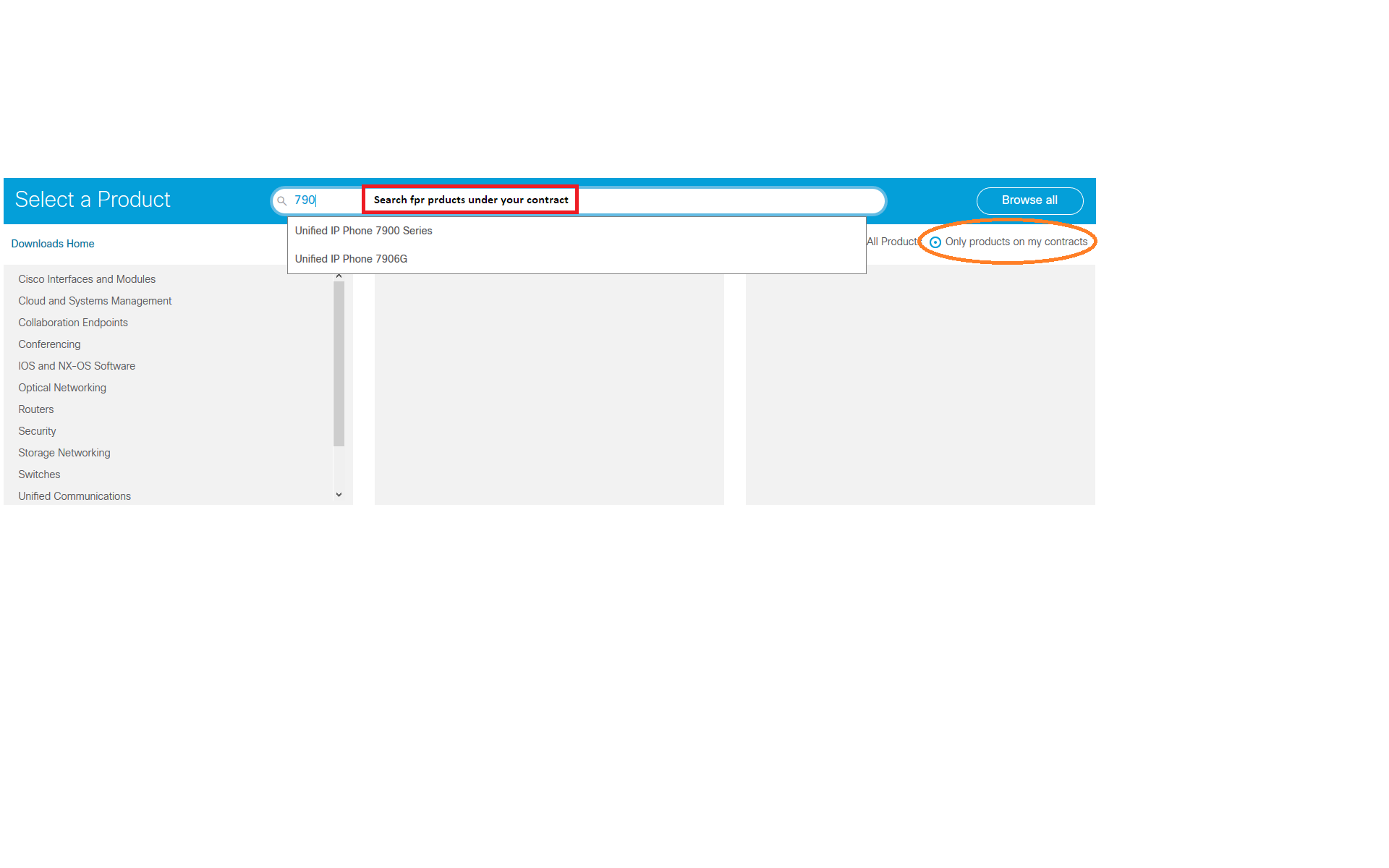
Users can navigate to software for products on their contracts. This feature is available to most
users. Users with very large number of contracts or very large number of products on contract will be
offered on the ' All Products' option.
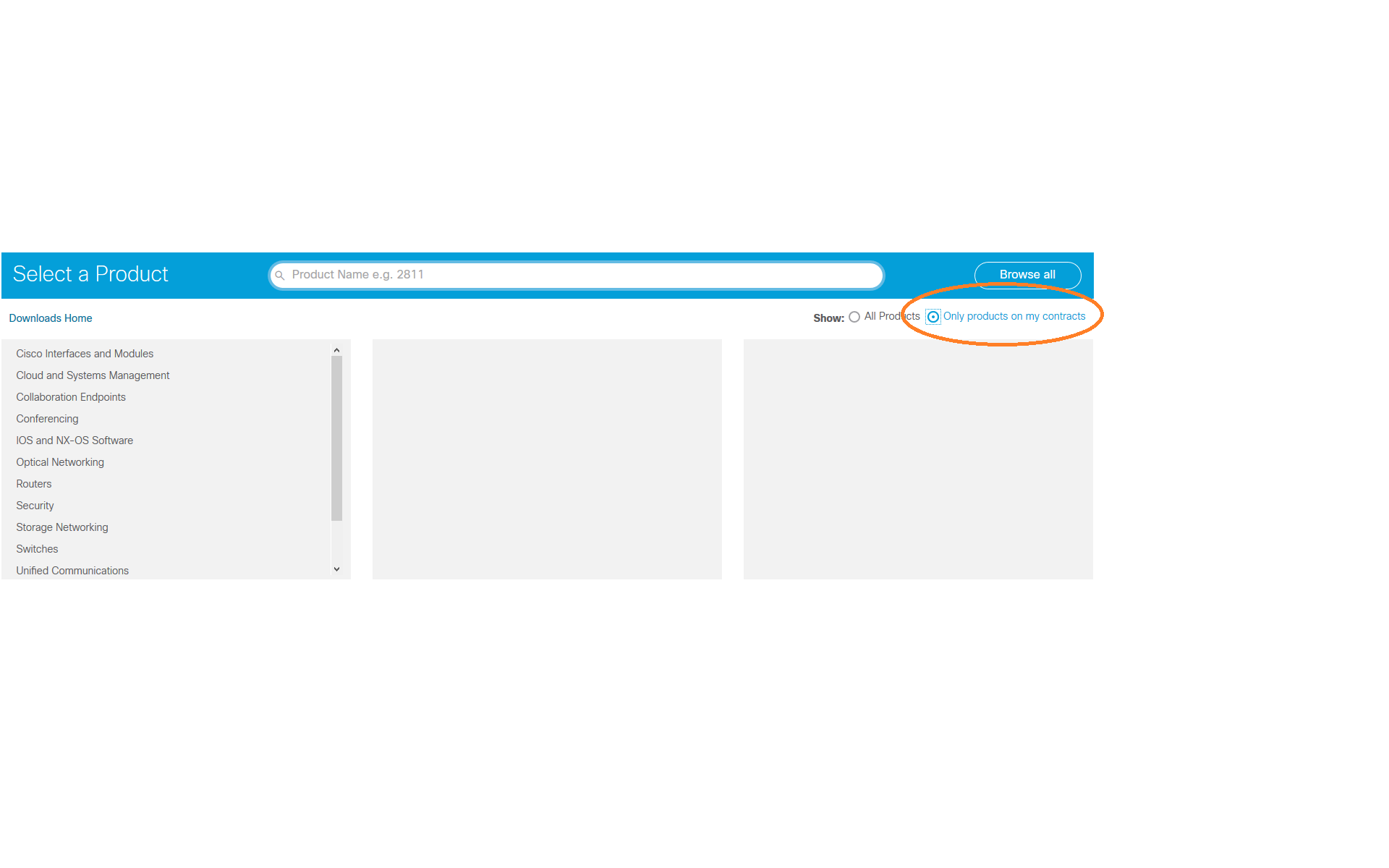
Find Products only on My Contract/s:
Downloads using My Download History
You can now see the software you downloaded before and also any latest available software for that
image in the My Download History area. You can hover over the release version to see the software
details and release notes.
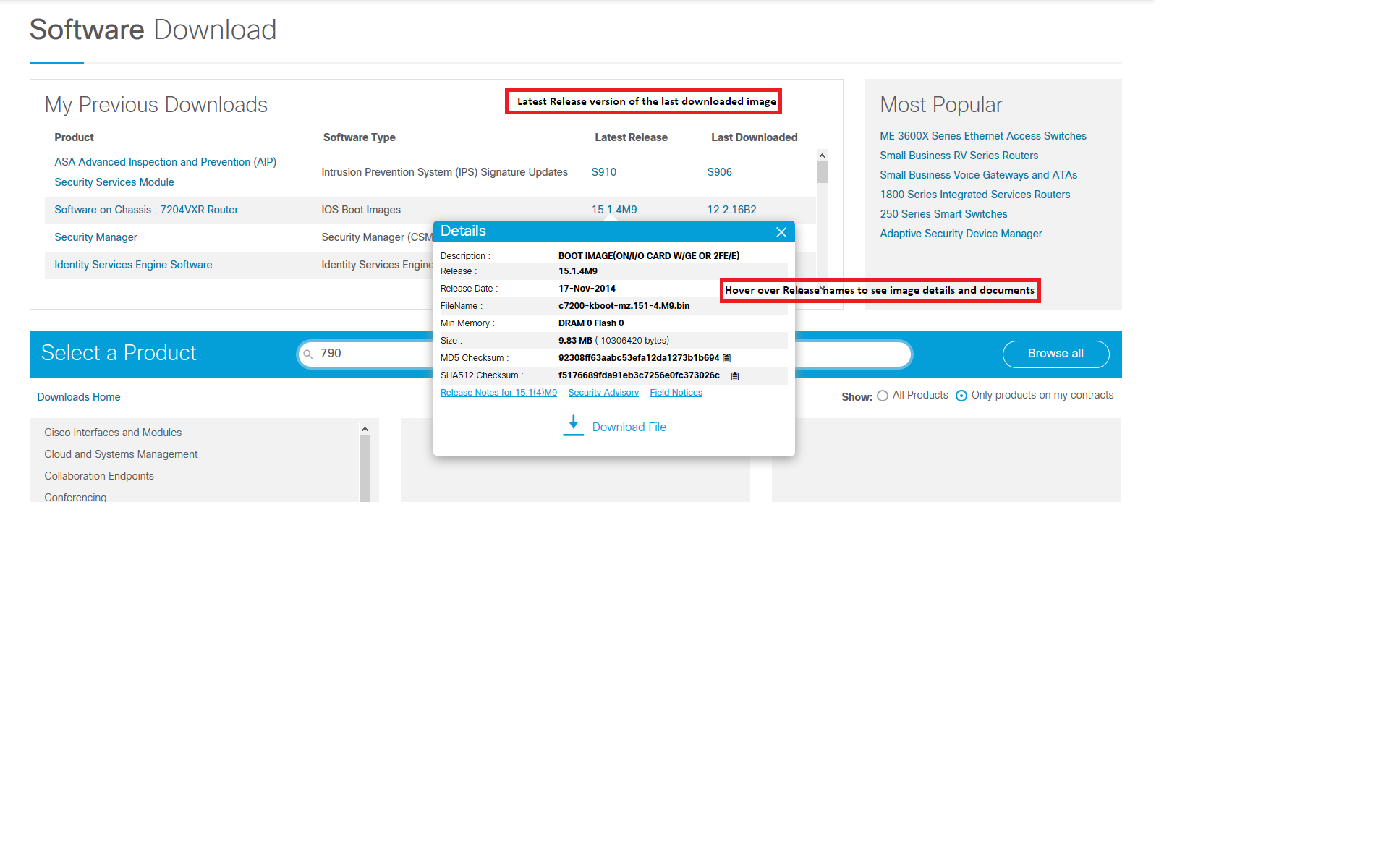
You can download the files directly from the My Download History area using a single click.
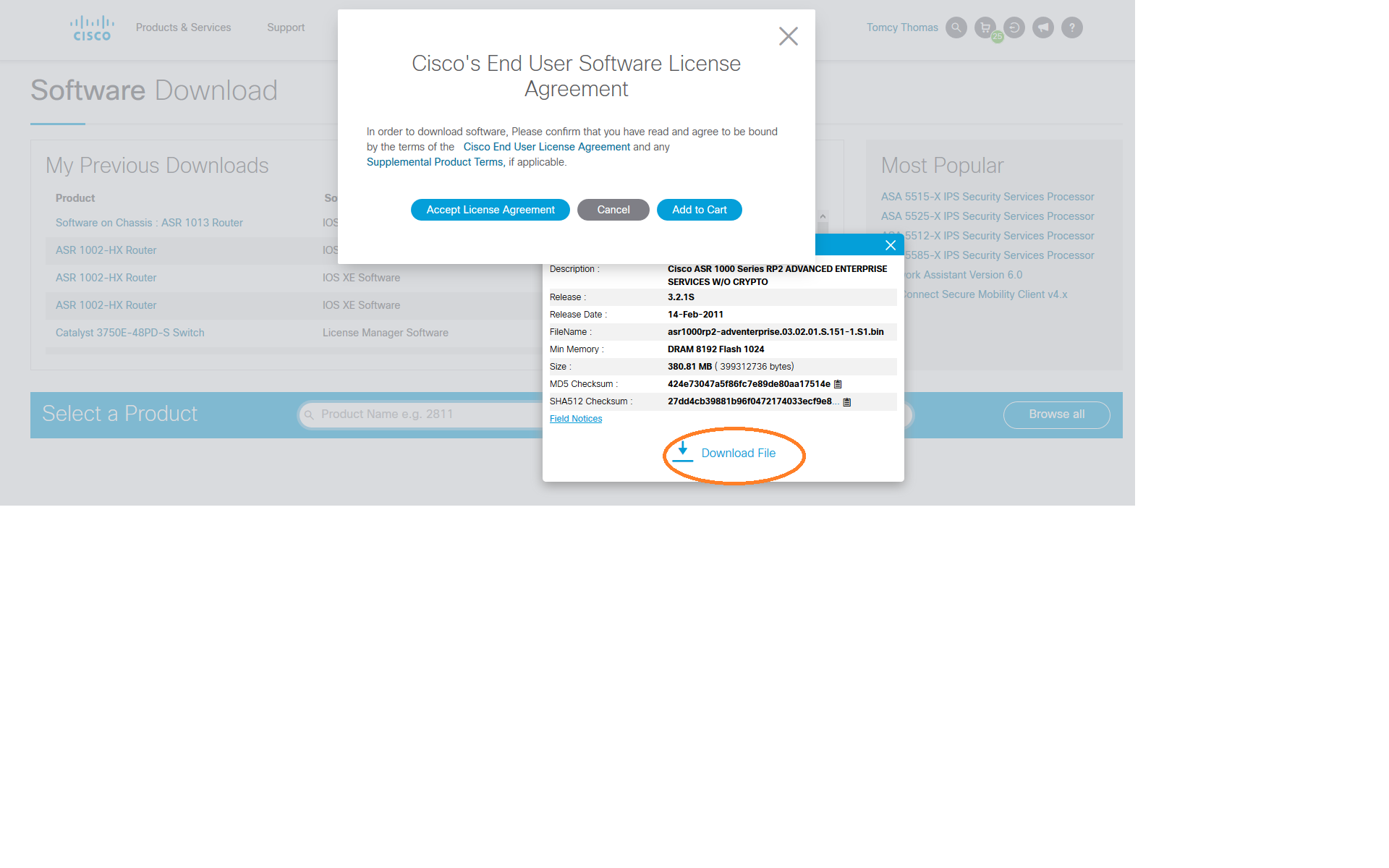
Return to Top
Cisco IOS Product Lifecycle Dates & Milestones
Cisco IOS Product Lifecycle Dates & Milestones
The Cisco IOS� Software release
product lifecycle establishes the policies and milestones for Cisco IOS Software releases. These
policies and milestones facilitate the Cisco IOS Software release selection process for deploying
technologies during the supported software product lifespan, and provide migration path options for a
proactive and streamlined software upgrade before a release reaches end of software maintenance.
Learn
more
Software Release Lifecycles
| Software Release Lifecycle Information |
|
|
Return to Top
Providing Feedback
Providing Feedback
We welcome your comments and suggestions to help us improve your software download experience on the
Cisco website. You can provide feedback with the Feedback Form by clicking the Feedback
link in the application.
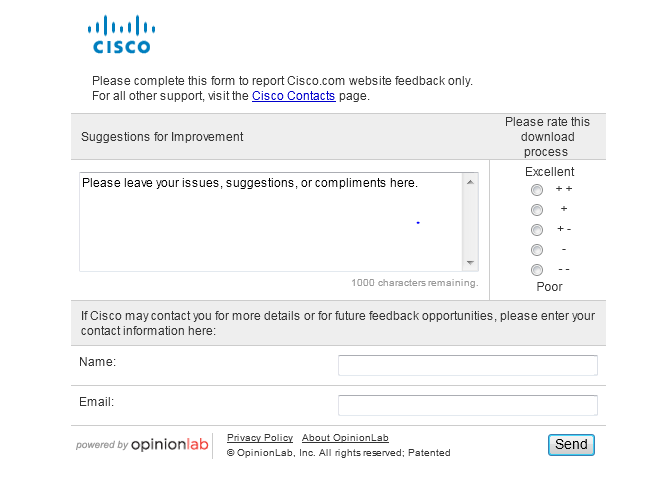
Return to Top
Registration and Service
Contract
A. Access to certain Cisco software requires
registration due to export regulations and contract access. To create a Cisco.com account you
can register here: http://tools.cisco.com/RPF/register/register.do
The registration process enables you to obtain a username and password that creates a guest
login to access any free, downloadable Software from Cisco.com. To access contract-restricted
software you must associate a valid service contract to your profile in the additional access tab in the
profile manager. Registering and reporting software downloads for software containing
encryption is required by the US government. If you would like to know more information on cryptographic
software and export compliance that is enforced by the US federal government, you can visit the url http://www.cisco.com/wwl/export/crypto/tool/faq.html If you have any
suggestions/concerns regarding Registration, you can send an e-mail with your Corporate login details
(Username/e-mail ID, Company information) to web-help@cisco.com If you have any
suggestions/concerns regarding Registration, you can send an e-mail with your Corporate login details
(Username/e-mail ID, Company information) to web-help@cisco.com
Return to Top
Q. How do I add a service contract to my profile?
A. To associate a service contract to your
profile follow the instructions at http://www.cisco.com/web/Downloads/SDS/unentitled_instructions.html
Return to Top
A. Certain software needs additional access
and cannot be downloaded by a Registered Guest user. To download this software you need to have a valid
Technical Support
Services Agreement. This can be obtained by:
> Contact your Cisco Service Agreements and Software
Downloads.
Return to Top
A. If you just registered or added a SMARTnet support
contract your account may not be updated yet. However, if you just created an account you will not be
able to access VPN software until a valid SMARTnet support contract is associated to your profile. You
can find the instructions at http://www.cisco.com/web/Downloads/SDS/unentitled_instructions.html
Return to Top
Using the Software Download Area
Q. FAQ 5:How do I search for software in the Downloads area?
A.Software can be searched using our global search function
which can be found throughout Cisco.com in the upper right-hand corner.

Use the global search tool to find software by entering a product name or a keyword.
For Example: Type 350 or aironet 350 in the search field, select from the dropdown list. Click on
Software Results Tab as highlighted in the screenshot below and you will see a page with links for
software specific results. Also Softwares can be filtered based on software type using the "Filter
Results By"option, which is available in left-hand tool bar.

Return to Top
A. Software can be navigated by products, technology,
releases, category, etc. There are two ways to navigate in the Download Software Area:
A. 1) Type a search term in the Find box within the Product
Selector. Possible matches to your entry will be provided in the drop down for your selection
while you are typing. If you select "find", you will be presented with all possible matches for
further selection.
2) There can be multiple paths to find the software you need. For
example, the latest software for Voice Gateway Cisco 3745 Multiservice Access Router can be found
using three navigation routes:
Navigation 1
Cisco IOS and NX-OS Software > Cisco IOS Software Release 12.4 Family > Cisco IOS Software
Releases 12.4 Mainline > Routers > Cisco 3700 Series Multiservice Access Routers > Cisco 3745
Multiservice Access Router > IOS
Navigation 2
Voice and Unified Communications > Communications Infrastructure > Voice Gateways > Cisco 3700
Series Multiservice Access Routers > Cisco 3745 Multiservice Access Router > IOS Software
Navigation 3
Routers > Cisco 3700 Series Multiservice Access Routers > Cisco 3745 Multiservice Access Router
> IOS Software >
Return to Top
A. Yes, you can download up to 25 files at a time using the
the download cart when logged in with your Cisco account.
Return to Top
A. The Add to Cart button adds the software image to the
Download Cart while keeping the user on the same page. The Download button initiates the download
without going through the cart.
Return to Top
.
Return to Top
Q. How do I get software notification alerts?
A. Software Notification Alerts allow you to receive
software updates for the selected product. You can request to receive software notification alerts
for specific products by selecting the 'Set Cisco Notification Alert' icon on the image listing
page or from your download cart. You will be prompted to name the notification. You can access your
notifications by selecting the 'My Cisco' tab and expanding 'Support Notifications.'
Return to Top
A. Selecting Software on Chassis will present the software
that runs directly on the product model chosen in the Software Downloads Area
Return to Top
A. You can use the breadcrumb to navigate within the
software downloads area.

For example, to select a different
software type than Aironet Client Bundle, click on the link Aironet Client Bundle (Firmware, Driver,
Utility) which will
refresh the page with a list of all software type options available for the Aironet 350.
Return to Top
Cisco Small Business products
Q.How do I find firmware for Cisco Small Business products?
A. Downloads for select Cisco Small Business products are
now available on Cisco.com without the need to register or login.
Firmware, including previous versions, can be found in the Cisco downloads
area.
Return to Top
Free Software
Q. What do the icons next to the images mean?
A. An image with icon requires login and/or
registration. An image with icon requires a service contract in order to download.
Return to Top
Q. Is VPN Client software free?
A. No, The Cisco VPN Client is included with all models
of Cisco ASA 5500 Series Security Appliances(excluding ASA 5505). Customers with
Cisco SMARTnet support contracts and encryption entitlement may download the Cisco VPN Client from the
Cisco Software
Center (requires Cisco.com login) at no additional cost. For customers without Cisco SMARTnet
support contracts, a media CD containing the client software is available for purchase. This CD does not
provide access to the most current patch releases.
Return to Top
Browser Support
Q. What browsers are supported and what browser settings are needed?
A. The list of Cisco supported browsers is at: http://www.cisco.com/web/help/browser.html
Q. What operating systems and browsers does the Download Manager work with?
A. The supported operating systems are Windows XP (SP3
32-bit, SP2 64-bit), Windows Vista (SP2 32-bit and 64-bit), Windows Server 2003 (SP2 32-bit and 64-bit),
Windows Server 2008 (SP2 32-bit and 64-bit), Windows 7, Windows 8 (desktop), and Mac OS X 10.5+ (Intel).
The supported browsers include Internet Explorer, Firefox, Safari, and Google Chrome.
Q. Is the Akamai NetSession client required for software downloads?A. No, the
Akamai NetSession client is not required for software downloads.The 'Download' option allows for direct
downloads without installation of the Akamai NetSession download manager client.
Return to Top
Troubleshooting in the Software Download Area
Q. Download Manager is not working with my proxy server. What should I do?
A. Please enable http posts in the proxy server to download
using the Download Manager.
Return to Top
Q. I lost my internet connection. How do I re-start the download in the Download Manager?
A. If you are have a valid session when you re-connect to
the internet , the Download Manager will automatically re-start the download for the current image.
Return to Top
Q. My session seems to have expired. What should I do?
A. If your session has expired on the download navigation
pages, you will be asked to either login again, or refresh the page. If your session has expired within
the Download Manager, please navigate back to the Download Cart and re-start the download process.
Additional information about the Akamai NetSession Client Interface can
be obtained at http://www.akamai.com/client.
Return to Top
Q. When searching for a product, in the third column, I'm unable to click on the product to go to the
download page. Also, the 'Download' button from the cart is unresponsive. I've tried several browsers.
What should I do?
A. We have found that this sort of issue may be caused due
to conflicts with the 'Ghostery' add-on on user systems. Whitelisting software.cisco.com in Ghostery
should rectify the issue.
Return to Top
Q. On my IE 8 browser, clicking 'Download' next to the image name does not initiate the
download. Also, clicking 'Download' from the cart removes the item from the cart without downloading the
file. What should I do?
A. Please follow the following steps to resolve the
issue:
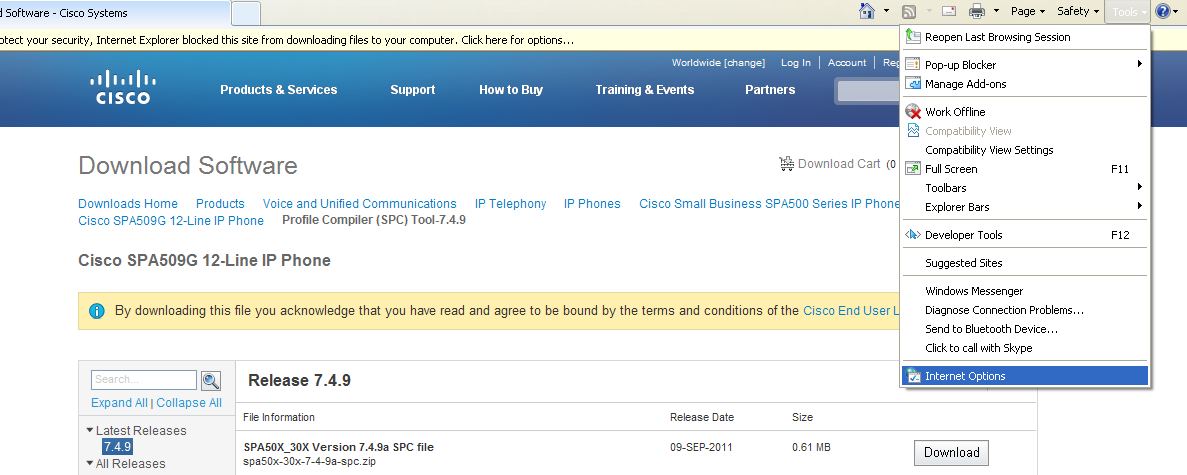
1. Select the Tools-> Internet Options from the browser menu.
2. Click the Security Tab and Select Internet Zone Option.

3. Select the Custom Level Button from the dialog box:

4. Select Downloads and check the status of Automatic prompting for file downloads:
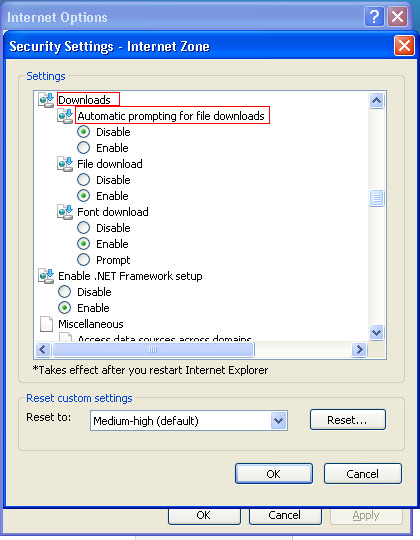
5. Select the Enable Option for the Automatic Prompting for file downloads :

6. Click Yes to the prompt if you want to apply the setting to the current zone :
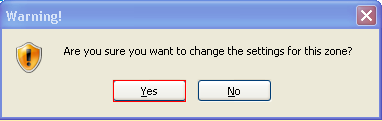
Step 7: Click on the 'Download' link again and you should be able to download
Return to Top
IOS Software
Q. Is it possible to view the features of the IOS?
A. We have View Features in our software downloads
area. You can select the check box next to the IOS image and view the features or you
can compare the features of two images using this View Features option.
Return to Top
Browser compatibility Issues
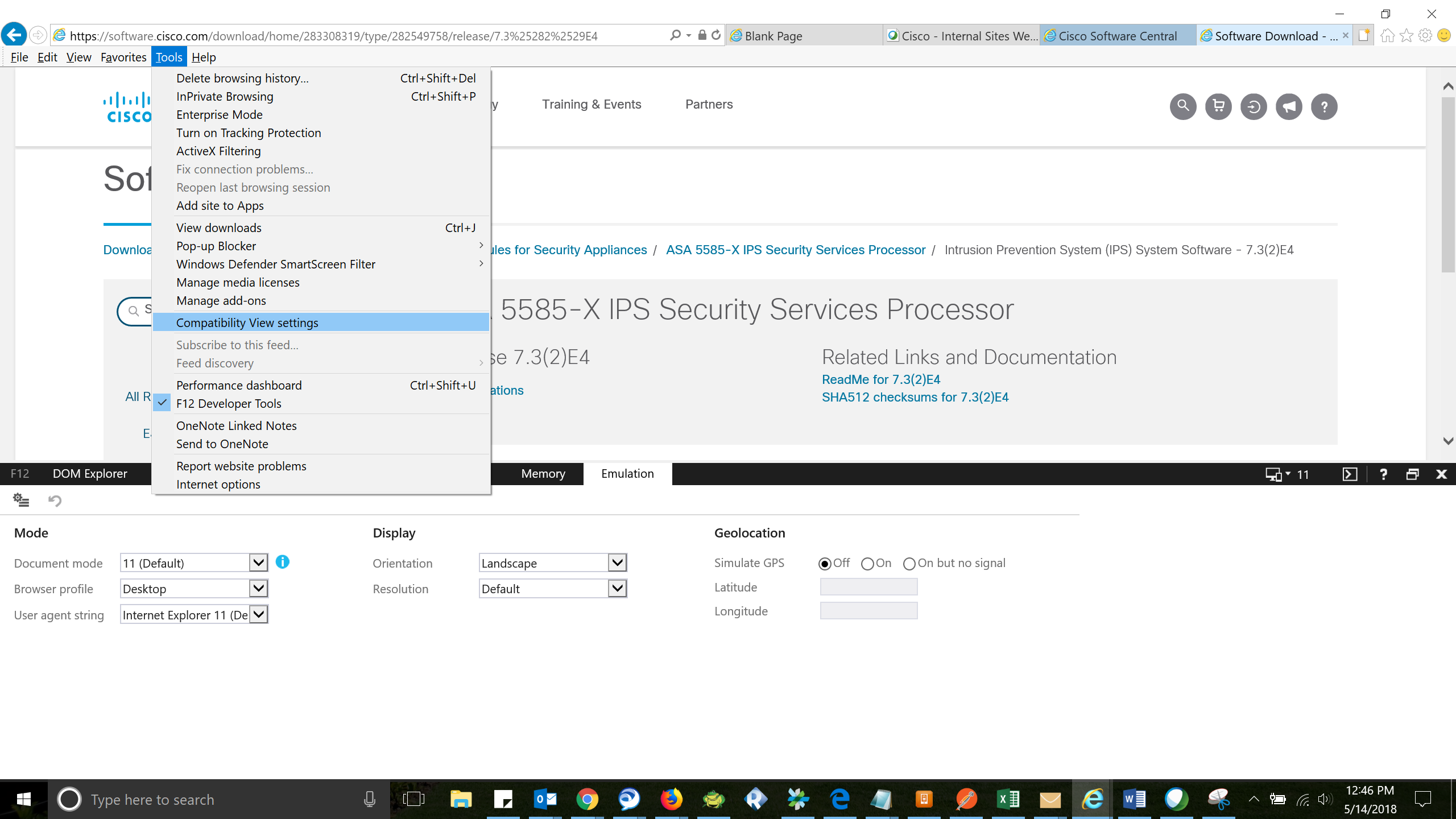
Q. I am having rendering issues with IE Browser?
A. Open your browser settings and make the changes as below
Tools --> Compatibility View settings --> Uncheck �Display Intranet sites in Compatibility View�
check box

Return to Top
|

